
# new
# 2020.1
IntelliJ IDEA 2020.1 adds
support for Java 14and new features for a number of frameworks, upgrades the debugger with dataflow analysis assistance, adds a new LightEdit mode, downloads and configures the JDK for you, and does so much more!
# 2020.1_Java
# Java 14 Support: Records & Pattern Matching
IntelliJ IDEA 2020.1 adds support for Java 14 and its new features. Not only does the IDE add full code insight support for Records, but it also enables you to quickly create new records and generate their constructors and components, and it warns about existing errors. You will also discover support for Pattern Matching for the instanceof operator including a new inspection and a quick-fix that quickly simplifies the verbose instanceof-and-cast idioms by replacing them with the new concise pattern variables.
IntelliJ IDEA 2020.1添加了对Java 14及其新功能的支持。 IDE不仅添加了对Records的完整代码洞察支持,而且还使您能够快速创建新记录并生成其构造函数和组件,并警告存在的错误。您还将发现对instanceof运算符的模式匹配的支持,包括新的检查和快速修复,该快速修复通过用新的简洁模式变量替换它们来快速简化冗长的instanceof-cast惯用语。
# Download the JDK from the IDE
You no longer need to search for the necessary JDK on the web. Starting with IntelliJ IDEA 2020.1, you can download and set up a JDK build right from the IDE as you create and configure your project. If you open a downloaded project, the IDE checks whether the JDK configured for this project is already installed on your computer. If not, the IDE will prompt you to download it.
# New Java inspections
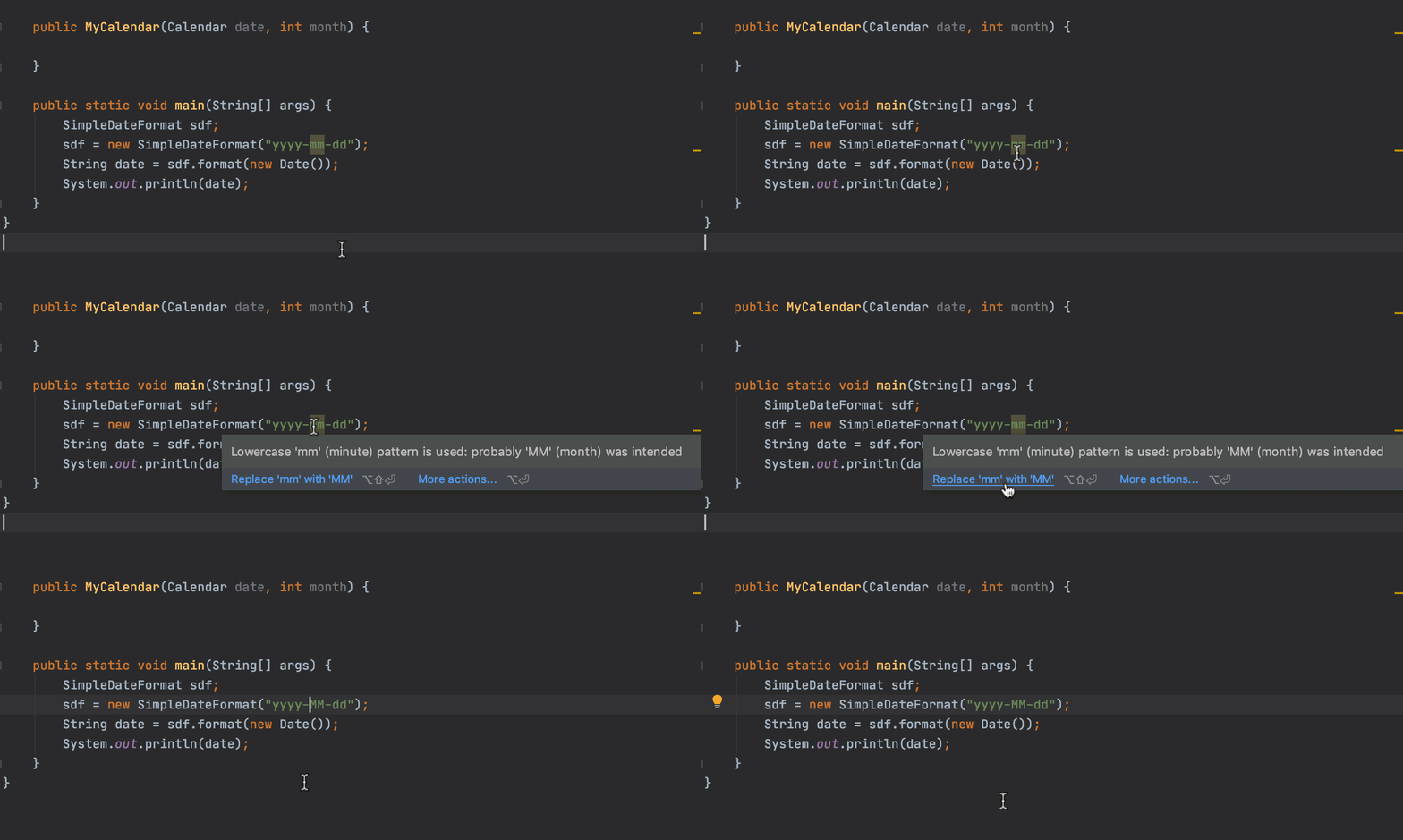
With every new version of IntelliJ IDEA, we’re extending its static code analysis capabilities. And this release isn’t any different. Apart from a range of improvements, we’ve also added several new code inspections. They check capitalization in the
SimpleDateFormatpatterns, analyze date formatting cases, search for additional redundant method calls, and report and suggest eliminating unnecessary escaping characters in string literals.
# 2020.1_Editor
# LightEdit Mode
IntelliJ IDEA 2020.1 comes with the long-awaited LightEdit mode.
You can now make quick modifications to standalone files in a text-like editor without creating or loading an entire project. You can open files in this new lightweight editor from the command line, the IDE’s Welcome screen, or from your OS system file manager. You can also switch from LightEdit mode to full project mode by using the “Open File in Project” intention (Alt+Enter).
# In-place Rename and Change Signature
When working on your Java or Kotlin app in IntelliJ IDEA 2020.1, you no longer need to use a cumbersome modal dialog to change the signature of a method or a class. Now you can simply edit the parameters of a class or a method, and then click the new gutter icon or press
Alt+Enterto review and apply the changes to the class / method declaration and all of its usages.
在IntelliJ IDEA 2020.1中处理Java或Kotlin应用程序时,您不再需要使用繁琐的模式对话框来更改方法或类的签名。现在,您可以简单地编辑类或方法的参数,然后单击新的装订线图标或按“ Alt + Enter”以查看更改并将其应用于类/方法声明及其所有用法。
# In-editor Javadocs rendering
Reading Javadocs in the editor can be annoying because of all the tags you have to wade through, especially when you need to interact with the reference links and images. This is why we’re adding a way to render Javadocs right in the editor. Enable this feature through
Help | Find actions | Render documentation comments on file opening.
# Code Vision
We have taken our first steps toward implementing Code Vision – an easy way to focus on code while getting additional information about it. In IntelliJ IDEA 2020.1, Code Vision can show you the usages and implementations of Java symbols. To enable the feature, go to
Preferences / Settings | Editor | Inlay Hints | Java, choose Code Vision, and check the related Show hints… checkboxes.
我们已迈出了实现代码愿景的第一步,这是一种专注于代码并同时获得有关其更多信息的简便方法。在IntelliJ IDEA 2020.1中,Code Vision可以向您展示Java符号的用法和实现。要启用该功能,请转到Preferences / Settings | Editor | Inlay Hints | Java,选择“Code Vision”,然后选中相关的“显示提示”复选框。
# Improved navigation bar
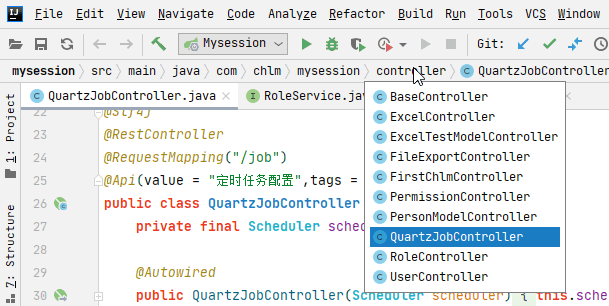
IntelliJ IDEA 2020.1 provides one more option to simplify project navigation. You can jump to the necessary line in a file straight away without scrolling because the navigation bar now shows you methods in Java classes and interfaces. If you don’t use the navigation bar, now is a great time to turn it on in
View | Appearance | Navigation Bar.
# Zen mode
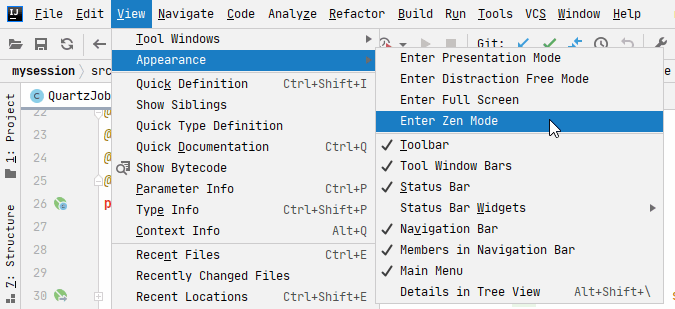
We’ve introduced the new Zen Mode for our editor. It helps you eliminate any distractions and focus solely on your source code. Zen mode combines Distraction Free Mode with Full Screen Mode, so you don’t have to enable both of them anymore(禅宗模式结合了无干扰模式和全屏模式,因此您无需再启用这两种功能). Just select
View | Appearance | Enter Zen Modefrom the main menu and forget about the world outside.
# Smart Grammar and Spell Checker
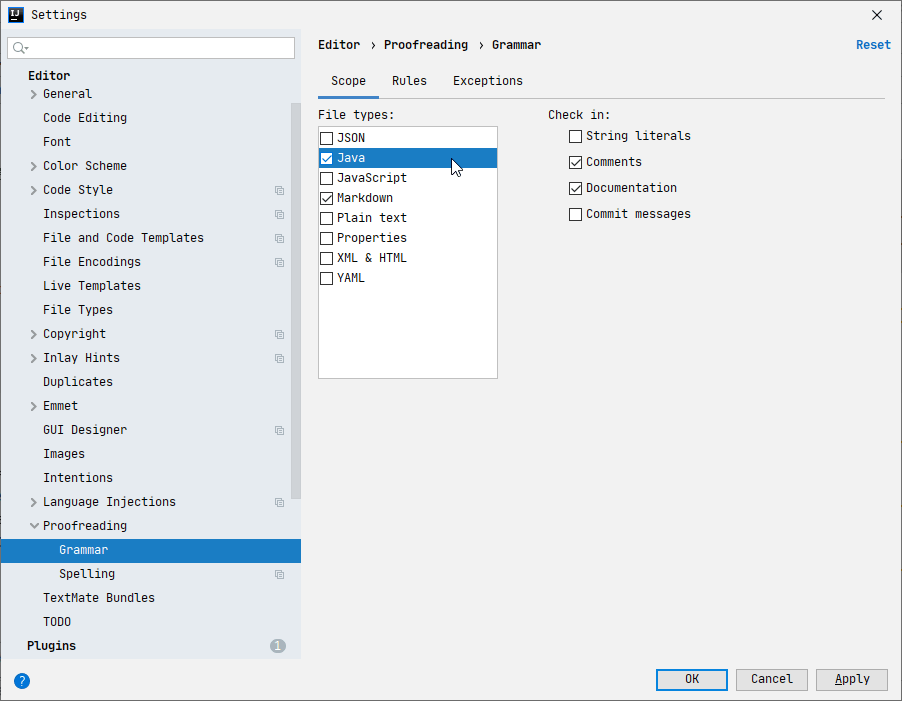
IntelliJ IDEA 2020.1 comes bundled with the Grazie plugin, which is a comprehensive grammar, spelling, and style checking tool. Now the IDE checks more than just your code constructs. It also helps you write clear string literals, comments, Javadocs, commit messages, and much more in 16 natural languages. By default, it only checks text files, but we encourage you to enable it for Java files too in
Settings/Preferences | Editor | Proofreading | Grammar.
# Quick type definition
Learn the type definitions of variables, fields, methods, and other symbols without switching focus from your code. Place the caret at the necessary symbol and select View | Quick Type Definition from the main menu. IntelliJ IDEA then shows you the information in a popup, from which you can open the source file and edit the code.
# 2020.1_Debugger
# Dataflow analysis assistance
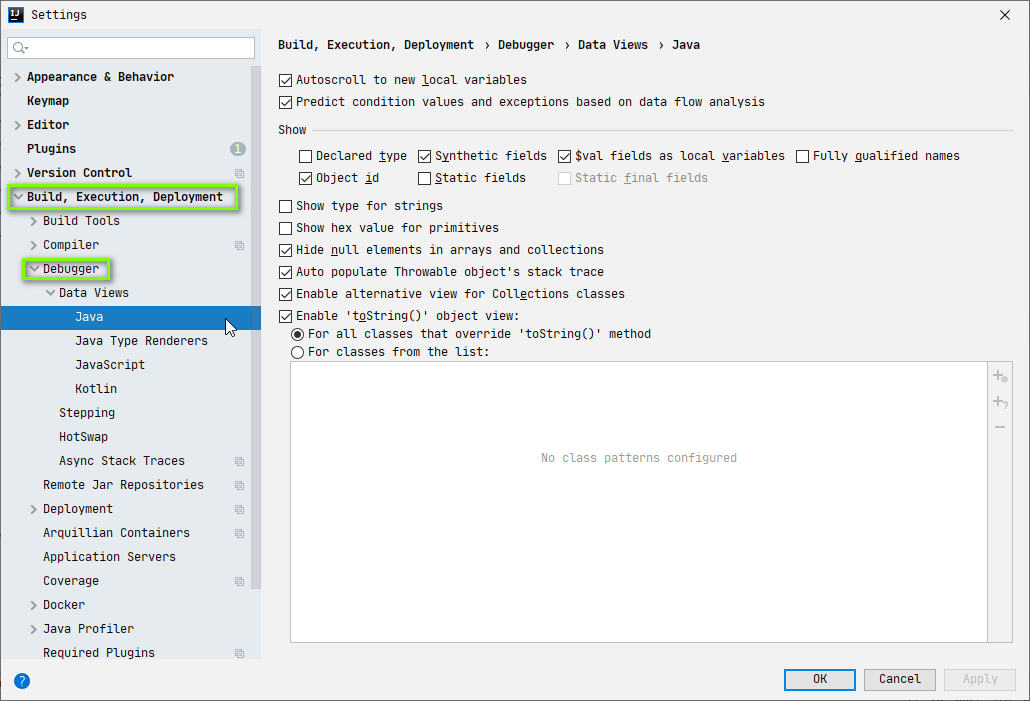
IntelliJ IDEA 2020.1 adds dataflow analysis to the JVM debugger. It predicts code execution before this code is actually executed. When your application stops at a breakpoint, the IDE runs dataflow analysis based on the current state of the program to check what is going to happen next. To use DFA in the debugger,(它在实际执行此代码之前预测代码的执行。当您的应用程序在断点处停止时,IDE将根据程序的当前状态运行数据流分析,以检查下一步将发生什么。在调试器中使用DFA) enable it in Settings/Preferences | Build, Execution Deployment | Debugger | Data Views | Java.
# Pin to top
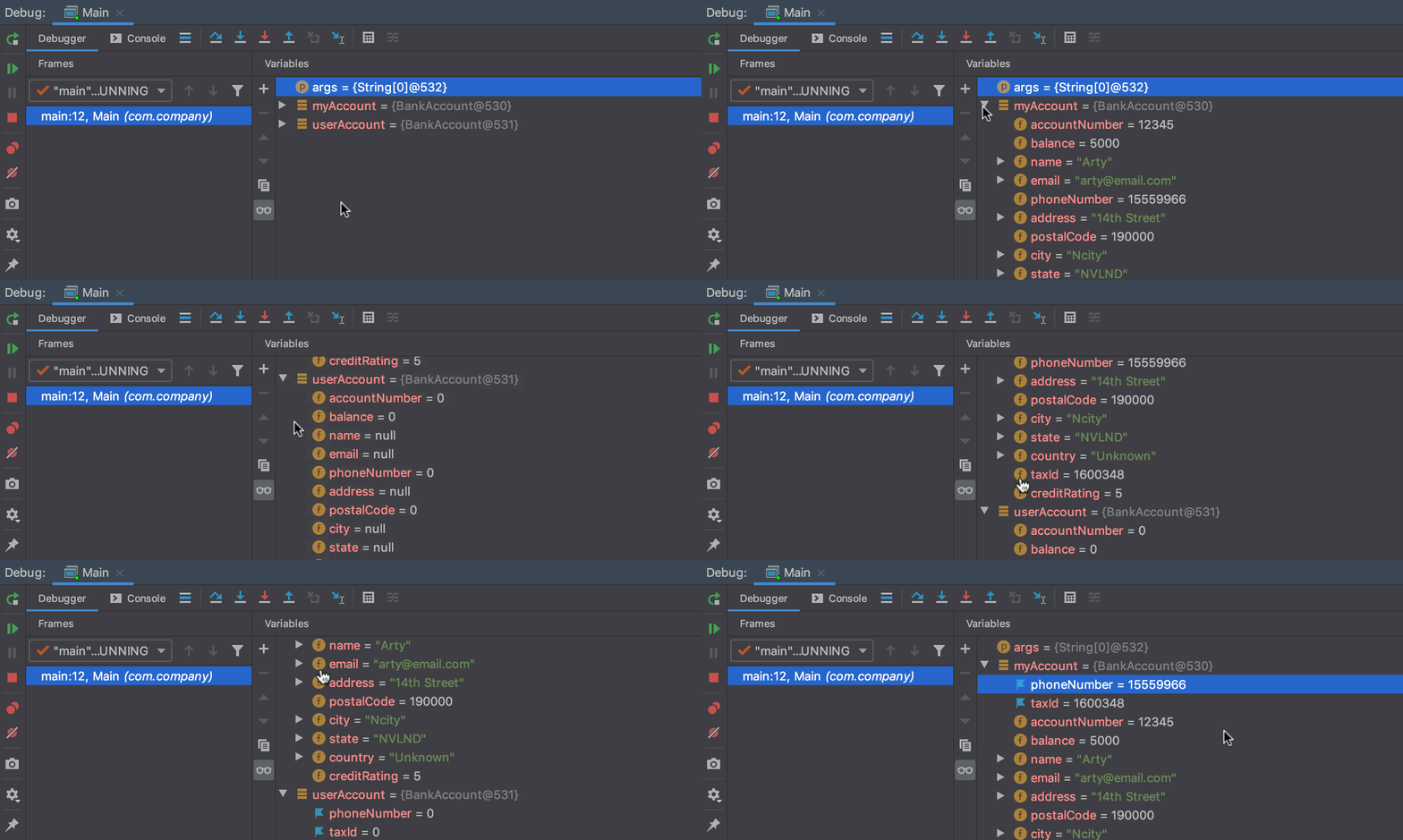
Another improvement is the ability to pin any of an object’s fields to the top of the fields list. This is handy when an object has so many fields that it’s difficult to locate the one you need to investigate.
另一个改进是可以将对象的任何字段固定到字段列表的顶部。当对象的字段太多而难以找到需要调查的字段时,这非常方便。
# 2020.1_Profiler
# Focus on method calls ULTIMATE
Support for application profiling in IntelliJ IDEA keeps evolving. In this release, we’ve added several new features: Focus on Subtree, Focus on Call, Exclude Subtree, and Exclude Call. With these options, you can focus more specifically on a chosen method call and filter out the unnecessary ones.
IntelliJ IDEA中对应用程序配置文件的支持不断发展。在此版本中,我们添加了几个新功能:“专注于子树”,“专注于调用”,“排除子树”和“排除呼叫”。使用这些选项,您可以更专注于所选的方法调用,并过滤掉不必要的方法。
# Collapse recursive calls ULTIMATE
The profiler in IntelliJ IDEA now detects recursive calls when the same method is called higher up in the stack. The IDE allows you to bypass recursion by taking these calls out of the subtree, which lets you focus on the methods that consume most of the resources and on the calls that they make. Recursive calls are marked with this new special icon in the Call Tree tab of the Profiler tool window.
现在,当在堆栈中的更高层调用同一方法时,IntelliJ IDEA中的事件探查器将检测到递归调用。 IDE允许您通过将这些调用从子树中移出来绕过递归,这使您可以专注于消耗大部分资源的方法以及它们进行的调用。在Profiler工具窗口的“调用树”选项卡中,此新的特殊图标标记了递归调用。
# Initial support for HProf snapshots ULTIMATE
IntelliJ IDEA 2020.1 opens .hprof memory dump files that can help you identify memory leaks and find ways to optimize memory usage. For example, you will see basic information, like the total size, number of instances, and stack traces of the file. The files also list all root objects grouped by classes, all classes sorted by their numbers of instances or size, and all class instances with the field value viewer. To open the .hprof file, go to Help | Find action and type “hprof” to find the Open Hprof Snapshot action. Note that this feature is in its early stages, and will be improved in the following major releases.
# 2020.1_Version Control
# New Commit tool window
In IntelliJ IDEA 2020.1, we’ve reworked the interface for committing changes to your VCS repository – instead of a modal Commit dialog, you can now take full advantage of the dedicated Commit tool window. It provides more space for the list of modified files and the diff, and it lets you add changes to a commit when they are ready, compose a commit message iteratively, and choose which of the staged changes go into which commit. The new UI is enabled by default for new users; existing users can switch to it in Preferences/Settings | Version Control | Commit.
# New Interactively Rebase dialog
The reworked Interactively Rebase from Here dialog has become truly interactive. Now it does a lot more than letting you select an action you want to perform on each commit in your branch. It also features a graph showing which actions have been applied, displays commit details, and lets you see a diff and review or reset the changes if necessary.
# Install Git from the IDE
With IntelliJ IDEA 2020.1, you no longer need to pre-install Git manually. When you clone an existing Git repository, the IDE will look for the Git executable on your machine, and will offer to download and set it up for you if the IDE can’t locate it.
# Branches popup
The Branches popup now features an explicit search field that enables you to look for existing remote and local branches.
The Refresh button has been reworked, so that you can now use it to update the existing remote branches.
Incoming (blue) and outgoing (green) commit indicators have been added to the status bar.
The Log now features a branches list.
# Appearance
# JetBrains Mono
We care a lot about the efficiency of IntelliJ IDEA, but we also devote a great deal of our efforts to its look and feel. Many of our users already know that we’ve recently finished developing our own font – JetBrains Mono. We’ve been getting tons of positive feedback, and that is why JetBrains Mono has become the default font of IntelliJ IDEA in this release.
# Unified IntelliJ Light theme
IntelliJ IDEA 2020.1 features a new default light theme that is now unified across all the different operating systems. Please welcome IntelliJ Light! You can always roll back to one of the old themes in View | Quick Switch Scheme | Theme, but we really encourage you to give IntelliJ Light a go.
# Frameworks & Technologies
# Spring WebFlux ULTIMATE
As we always strive to keep up with the developer trends and support the most popular technologies, in v2020.1 we’ve enhanced our support for the Spring WebFlux framework. We’ve added request mappings, so if your WebFlux application has Actuator enabled, you can access the mappings in the Run tool window to monitor your application and interact with it. Also, the IDE now works properly with the Rendering API, so code autocompletion and navigating to the related views are now available. On top of that, you can take full advantage of the code insight features, such as Find Usages (Alt+F7), and the Rename refactoring (Shift+F6).
More improvements for Spring WebFlux
# Spring profiles ULTIMATE
Previously, IntelliJ IDEA treated Spring profile expressions as strings. Starting with v2020.1, the IDE distinguishes between different profiles in an expression, and lets you apply smart actions to them, such as Find Usages (Alt+F7) and the Rename refactoring (Shift+F6). We’ve also enhanced the usability of the Change Active Spring Profiles popup and implemented completion for existing profiles.
# Selenium ULTIMATE
IntelliJ IDEA 2020.1 Ultimate introduces initial support for Selenium, a popular framework for testing web applications, through a new Selenium UI Automation Testing plugin. The new plugin supports the most popular JVM frameworks for UI testing and reporting libraries: Selenium, Selenide, Geb, Serenity BDD, and Allure Framework.
IntelliJ IDEA’s enhancements for Selenium include a new project wizard, highlighting, inspections, and code completion in tests for Java/Kotlin/Groovy languages, validation for various configuration files, and icons in the gutter for easier navigation.
More about Selenium Support in IntelliJ IDEA
# JMS and Spring Messaging APIs ULTIMATE
IntelliJ IDEA 2020.1 comes with a full set of code insight features for JMS and Spring Messaging APIs for both Java and Kotlin applications. These include code completion, navigation, the Rename refactoring (Shift + F7), reference injection (Alt + Enter), and more.
# Micronaut ULTIMATE
In the previous version of IntelliJ IDEA, we added support for the Micronaut framework. The new version extends this support and adds automatic completion for parameters in configuration files, as well as navigation and quick documentation. The IDE now also autocompletes basic data types and detects whether a value is invalid. Additionally, IntelliJ IDEA now recognizes injected RegExp fragments in Micronaut URL mappings, which makes the syntax more readable.
# RxJava ULTIMATE
IntelliJ IDEA 2020.1 augments RxJava support by adding a number of useful inspections. The IDE now detects unused publishers, and lets you know when a lambda returns a null. It also highlights thread-blocking method calls and filter chains that are too long.
# Quarkus and MicroProfile ULTIMATE
With IntelliJ IDEA 2020.1, you can now create new Quarkus and MicroProfile projects directly through the New Project wizard, which will walk you through the initial configuration.
# Injections for third-party SQL libraries ULTIMATE
The IDE now automatically injects SQL fragments for popular third-party libraries that were previously treated as usual strings, and provides code completion and navigation for SQL statements and fields. The list of supported libraries includes R2DBC, Vert.x SQL Clients, Apache Spark SQL, and Apache DB Utils, among others.
# Swagger Codegen ULTIMATE
IntelliJ IDEA 2020.1 is integrated with Swagger Codegen – a powerful tool for generating server stubs, API clients, and documentation that supports a vast range of programming languages. We’ve prepared a dedicated run configuration where you can set things like a path to generate the files to, a path to the .mustache templates folder, a language, and a different JRE in case of compatibility issues. To let Swagger Codegen do its magic, you just need to open an OpenAPI/Swagger file, specify its settings, configure a few options, and then click Run.
# Remote specifications ULTIMATE
IntelliJ IDEA 2020.1 knows how to work with openapi/swagger specifications. For example, it provides autocompletion for them. You just need to enter the specification URL in the settings, and the IDE will complete URL paths from it as you type. You can also create your own specifications in the same way that you usually create classes and interfaces: File | New | OpenAPI Specification.
# HTTP Client
# Improved autocompletion, and more ULTIMATE
The HTTP client in IntelliJ IDEA 2020.1 is getting a bit smarter. Now it can correctly autocomplete path variables and URL paths, and it can get you to the related endpoints right from the HTTP request files. We also have an update for our Micronaut and Spring users: request handler methods now feature a gutter icon for URL mappings. Use it to create or open an existing HTTP request file and navigate to the HTTP client.
# Docker
# Easier Pull workflow for Docker
To help you more easily pull images from a Docker registry, we’ve reworked our UI and removed the modal dialog. Now, you can simply click the Images node in the left-hand pane of the Service tool window, and IntelliJ IDEA will open the Images Console tab in the right-hand pane, from which you can easily pull images. The IDE also provides completion for images.
# Kubernetes
# “Apply” command for Kubernetes files ULTIMATE
You can now update a Kubernetes cluster to match a state defined in your local files, by invoking the “Apply” command right from the editor gutter.
More about Docker and Kubernetes improvements
# Build tools
# Maven and Gradle importing updates
IntelliJ IDEA 2020.1 brings a small but important update to our Maven and Gradle users. Instead of the old auto-import, there’s now a floating notification in the upper-right part of the editor. Use this notification or a new shortcut (Ctrl+Shift+O for Windows and Linux /Shift+Cmd+I for Mac) to load the changes after you modify the build file. It gets even better: when IntelliJ IDEA detects any changes to the build file made outside the IDE, such as VCS updates, it reloads the related projects automatically.
# Scala
# Scala 3 support
Now that Dotty is destined to become Scala 3, we have started to work on full-fledged Scala 3 support. The Scala plugin now includes preliminary support for Scala 3, with the new syntax, error highlighting, navigation, type info, and many other bread-and-butter IDE features.
Because both the language and the language support are still works in progress, we recommend using nightly plugin builds if you want to get new features and bug fixes as soon as possible.
More about Scala 3 support in IntelliJ IDEA
# Fine-grained error highlighting for function literals
In Scala, functional literals are used a lot. They are very much like methods and have separate parameters and bodies. But they are often treated as a single expression of function type, making it harder to locate and interpret errors.
In this release, we've introduced fine-grained error highlighting for function literals, which can help you pinpoint errors relying on clear and precise messages, instead of possibly obscure messages with function types.
# Unused Parameter inspection
The Scala plugin has been able to show unused variables and methods for a long time. Now it can also spot unused parameters. Parameters that are not referenced inside a method or class are highlighted in gray.
In contrast to variables and methods, unused parameters are often the result of programming errors. So not only does the new inspection make your code cleaner, but it can also help you prevent various errors.
# Smart Step Into
In Scala, we often have multiple method calls on the same line. In such cases, using Step Into in the debugger is hardly convenient – you have to manually step into and then out of many methods before you reach the desired one.
In this release, Step Into has become Smart Step Into. You can simply choose a desired method, and the IDE will do the work.
# BSP support improvements
We've improved BSP support. It now works more smoothly, and with more projects and build tools. You no longer have to manually install Bloop to import sbt projects via BSP – the Scala plugin can convert such projects to Bloop format automatically. It's now possible to cancel BSP builds from the Build tool window. Finally, you can view and manage BSP connections using the BSP widget.
# JavaScript
# New smart intentions and inspections ULTIMATE
New smart intentions and inspections (Alt+Enter) enable you to save yourself some time when coding. For example, you can now quickly convert the existing code to optional chaining and/or nullish coalescing, the syntax introduced in the latest versions of JavaScript and TypeScript.
# Vuex and Composition API support ULTIMATE
With out-of-the-box support for the Vuex library and the Composition API from the upcoming Vue 3, you can build great Vue.js applications even more smoothly.
Take a look at What’s New in WebStorm to learn about the other JavaScript improvements that are also available in IntelliJ IDEA 2020.1.
# Database improvements
# Database improvements ULTIMATE
The database improvements include the ability to export data to Excel (.xlsx) files, view data as text right in the editor, create run configurations, and many other things.
Check out What’s New in DataGrip for all the database improvements that are also available in IntelliJ IDEA 2020.1.
# Terminal
# Split terminal sessions
We’ve added an ability to split terminal sessions vertically or horizontally so that you can run them side by side. You can invoke the context menu from the Terminal to create, navigate, and close a split terminal session.
# Run Configurations
# Store Run Configurations as files
Starting with v2020.1, you can choose any location within your project folder for your run configurations so that you can share them with your team members through version control. To do so, open the Run/Debug Configurations dialog, check Store as project file in the upper right part of the dialog, and click the gear icon. This will open a popup which allows you to choose where to store your run configurations.
# Android
# Android Volley support
IntelliJ IDEA 2020.1 brings support for the Android Volley library. It provides automatic code completion for URL path references, and lets you navigate to related resources.