
# css 其他要点难点学习

# 三大特性
- 层叠性:css 样式冲突采取的原则(后者覆盖前者)
- 继承性:对于部分属性样式会有天生的继承
- 优先级:选择器优先级算法
# 选择器
# 打造自适应网站只用一个 CSS 属性就够了
clamp(minimum, preferred, maximum);
# js 生成操作 DOM
/**
 * 生产视频预览框
 * @param src 视频地址
 * @param videoHeight 视频框高度
 * @param extendWidth 视频框宽度
 * @param id video框id
 */
const generateVideo = ({
  src = "",
  videoHeight = 520,
  extendWidth = "max-width:1280px;",
  id = "videoBodyDiv",
}) => {
  const videoElement = document.createElement("video");
  // const videoElement = document.getElementById('videoBodyDiv');
  videoElement.setAttribute("src", src);
  videoElement.setAttribute("id", id);
  // videoElement.setAttribute('className', styleVideo.videoBody)
  videoElement.setAttribute("autoPlay", "true");
  videoElement.setAttribute("controls", "true");
  videoElement.setAttribute("playsInline", "true");
  videoElement.setAttribute("webkit-playsinline", "true");
  videoElement.style.cssText = `width: auto;height: ${videoHeight}px;${extendWidth}`;
  return videoElement;
};
2
3
4
5
6
7
8
9
10
11
12
13
14
15
16
17
18
19
20
21
22
23
24
25
append 是追加到最后
const videoElement = generateVideo({
  src: finalUrl,
  id: `${containerId}Video`,
  videoHeight: 180,
  extendWidth: "max-width: 192px",
});
// videoElement.removeAttribute('controls')
videoPlay.appendChild(videoElement);
2
3
4
5
6
7
8
至于样式的设置
// 在单个语句中设置多个样式
videoElement.style.cssText = "color: blue; border: 1px solid black";
// 或者
videoElement.setAttribute("style", "color:red; border: 1px solid blue;");
// 设置特定样式,同时保持其他内联样式值不变
videoElement.style.color = "blue";
2
3
4
5
6
获取样式
要了解元素样式的信息,仅仅使用 style 属性是不够的,这是因为它只包含了在元素内嵌 style 属性(attribute)上声明的的 CSS 属性,而不包括来自其他地方声明的样式,如 <head> 部分的内嵌样式表,或外部样式表。要获取一个元素的所有 CSS 属性,你应该使用 window.getComputedStyle()。
<!DOCTYPE html>
<html>
  <body style="font-weight:bold;">
    <div style="color:red" id="myElement">..</div>
  </body>
</html>
2
3
4
5
6
var element = document.getElementById("myElement");
var out = "";
var elementStyle = element.style;
var computedStyle = window.getComputedStyle(element, null);

for (prop in elementStyle) {
  if (elementStyle.hasOwnProperty(prop)) {
    out +=
      "  " +
      prop +
      " = '" +
      elementStyle[prop] +
      "' > '" +
      computedStyle[prop] +
      "'\n";
  }
}
console.log(out);
2
3
4
5
6
7
8
9
10
11
12
13
14
15
16
17
18
输出结果
...
fontWeight = '' > 'bold'
color = 'red' > 'rgb(255, 0, 0)'
...
2
3
4
WARNING
请注意,计算样式中 font-weight 的值为“bold”,元素的 style 属性中缺少该值
# js 向现有 DOM 中插入 DOM
- 如果这个 DOM 节点是空的,例如,
<div></div>,那么,直接使用innerHTML = '<span>child</span>'就可以修改 DOM 节点的内容,相当于“插入”了新的 DOM 节点。 - 如果这个 DOM 节点不是空的,那就不能这么做,因为 innerHTML 会直接替换掉原来的所有子节点。
此时该如何操作呢?
- 一个是使用 appendChild,把一个子节点添加到父节点的最后一个子节点
<!-- HTML结构 -->
<p id="js">JavaScript</p>
<div id="list">
  <p id="java">Java</p>
  <p id="python">Python</p>
  <p id="scheme">Scheme</p>
</div>
2
3
4
5
6
7
把<p id="js">JavaScript</p>添加到<div id="list">的最后一项
var js = document.getElementById("js"),
  list = document.getElementById("list");
list.appendChild(js);
2
3
动态创建一个节点然后添加到 DOM 树中,可以实现很多功能。举个例子,下面的代码动态创建了一个<style>节点,然后把它添加到<head>节点的末尾,这样就动态地给文档添加了新的 CSS 定义:
var d = document.createElement("style");
d.setAttribute("type", "text/css");
d.innerHTML = "p { color: red }";
document.getElementsByTagName("head")[0].appendChild(d);
2
3
4
- insertBefore:
parentElement.insertBefore(newElement, referenceElement);,子节点会插入到 referenceElement 之前
# JS 修改 css 样式的 8 种方式
- 直接设置 style 的属性 某些情况用这个设置
!important值无效- 如果
属性有’-'号,就写成驼峰的形式(如 textAlign) 如果想保留 - 号,就中括号的形式
- 如果
element.style["text-align"] = "100px";
element.style.textAlign = "100px";
element.style.height = "100px";
2
3
- 直接设置属性(只能用于某些属性,相关样式会自动识别)
element.setAttribute("height", 100);
element.setAttribute("height", "100px");
2
- 设置 style 的属性
element.setAttribute("style", "height: 100px !important");
- 使用 setProperty 如果要设置!important,推荐用这种方法设置第三个参数
element.style.setProperty("height", "300px", "important");
- 改变 class 比如 JQ 的更改 class 相关方法
- 因 JS 获取不到 css 的伪元素,所以可以通过改变伪元素父级的 class 来动态更改伪元素的样式
element.className = "blue";
element.className += "blue fb";
2
- 设置 cssText
element.style.cssText = "height: 100px !important";
element.style.cssText += "height: 100px !important";
2
- 创建引入新的 css 样式文件
function addNewStyle(newStyle) {
  var styleElement = document.getElementById("styles_js");

  if (!styleElement) {
    styleElement = document.createElement("style");
    styleElement.type = "text/css";
    styleElement.id = "styles_js";
    document.getElementsByTagName("head")[0].appendChild(styleElement);
  }

  styleElement.appendChild(document.createTextNode(newStyle));
}

addNewStyle(".box {height: 100px !important;}");
2
3
4
5
6
7
8
9
10
11
12
13
14
- 使用 addRule、insertRule
// 在原有样式操作
document.styleSheets[0].addRule(".box", "height: 100px");
document.styleSheets[0].insertRule(".box {height: 100px}", 0);

// 或者插入新样式时操作
var styleEl = document.createElement("style"),
  styleSheet = styleEl.sheet;

styleSheet.addRule(".box", "height: 100px");
styleSheet.insertRule(".box {height: 100px}", 0);

document.head.appendChild(styleEl);
2
3
4
5
6
7
8
9
10
11
12
# @supports
@supports
是CSS中常见的@规则,可以用来检测当前浏览器是否支持某个css特性。
不支持animation的浏览器,使用gif动画,支持animation的浏览器,使用动画
.loading{
      width:10px;
      heigth:10px;
      background:url(./loading.gif);
}

/* 判断是否支持animation 属性,支持则增加动画效果 */
@support (animation:none) {
    .loading{
          width:10px;
          heigth:10px;
          background:url(./loading.png);
          animation: spin 1s linear infinite;
    }
    @keyframes spin{
        from { transform: rotate(360deg);}
        to {transform: rotate(0deg);}
    }
}
2
3
4
5
6
7
8
9
10
11
12
13
14
15
16
17
18
19
使用position:sticky 实现滚动粘滞效果,传统浏览器使用js支持。
//js 判断是否支持positon:sticky 属性  CSS.supports(propertyName,value)
  if( !window.CSS || !CSS.supports || !CSS.supports('position','sticky'){
      //TODO
  }
2
3
4
# fit-content
fit-content
把内容理解为"大腿",那么fit-content就是"紧身裤"
需求:文本少的时候,文本水平居中,多行文本的时候,文本向左对齐
/* // 传统实现 */
.content{
      display:table;
      margin:auto;
}
/* // 如果是内联元素 */
.content{
      display:inline-block;
      margin:auto;
}
/* // fit-content 实现 */
.content{
      width:fit-content;
      margin:auto;
}
2
3
4
5
6
7
8
9
10
11
12
13
14
15
# fit-content 优势
保护了元素原始的display计算值,例如 li 标签设置成display:table,前面的项目符号就不会出现,::marker伪元素也会失效。
让元素尺寸有了确定的值。
针对第二点让元素有了确定的值,我们的应用场景。例如:我们利用绝对布局,使用margin:auto 来实现居中效果,需要我们设置具体的with或者height的属性值。
有的时候我们不确定width,height,我们就会使用transform 来实现居中
.test3-center{
  position: absolute;
  left: 50%;
  top: 50%;
  background: red;
  transform: translate(-50%, -50%);

}
2
3
4
5
6
7
8
这个时候我们如果需要给 test3-center 添加一个位移动画
@keyframes move{
    from { transform:translateY(5px);}
    to { transform:translateY(0); }

}
2
3
4
5
这个时候我们的transform就会受到位移动画干扰。
更好的方法是使用我们的 fit-content,这样就有了确定的宽高,居中可以生效了。
.test3-center{
    position: absolute;
    width:fit-content;
    height:fit-content;
    left: 0;
    top: 0;
    right: 0;
    bottom: 0;
    margin: auto;
    animation: move .2s;

}
2
3
4
5
6
7
8
9
10
11
12
# border-image
# border-image 属性作用过程分为两个点
- 源图像的划分(九宫格)
- 九宫格尺寸的控制
# border-image 成员组成
border-image-source //图像资源,不讲解
border-image-slice
border-image-width
border-image-outset
border-image-repeat
2
3
4
5
border-image 应用场景
设计师给了我们一张list的背景图,背景图四个角有不同的小图案,中间区域可以拉伸,由于list的高度是不固定的,我们不能确定背景的高度,只能靠内容填充,这就需要我们的背景拉伸,设计师的原则:四个角不变形,中间区域拉伸。这个时候我们的border-image就可以出场了。
border-image 划分九宫格如下:
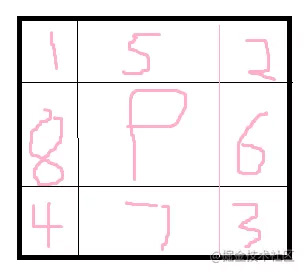
border-image 会将这九宫格作用在源图像上。
# border-image-slice
    /* //语法 */
border-image-slice: <number-percentage>{1,4} && fill?
2
表示支持1 ~ 4个数值或者1 ~ 4个百分比值,后面带一个fill关键字,fill关键字可选。border-image-slice 用于划分源图像,划分的方位和顺序为:上,右,下,左。
例如:border-image-slice:100 ,表示距离源图像上方100px,距离源图像右侧100px,距离源图像下方100px,距离源图像左侧100px,这个时候四个角1,2,3,4都被固定了,其他区域拉伸。
.test5 {
        position: relative;
        width: 400px;
        height: 300px;
        border: 50px solid red;
        border-image-source: url("./bg1.png");
        border-image-slice: 100;

    }
2
3
4
5
6
7
8
9
- border-image-slice 只是划分源图像。具体border的宽度跟border-width或者border-image-width有关。
- border属性一定要写在border-image 属性前面,否则border-image无效。
- border-image-slice 只能是数值或者百分比,不能带单位(px)。
- 默认情况下源图像中心位置(9号位置)是不参与填充的,如果想要填充效果,使用fill关键字。
border-image-slice:22% fill;
# border-image-width
- border-image-width 和border-image-outset 都是控制九宫格的尺寸。
- border-image-width 属性和border-width的属性支持个数一样,都是1 ~ 4 个,值得对应方位也一样,只是值得类型不一样。
- border-image-width 属性支持数值作为属性值,这个数值会作为系数与border-width的宽度相乘,最终的计算值作为边框的宽度。
- border-image-width 属性值如果是具体的长度值(30px,20rem),则边框宽度与border-width就没有任何关系了。理论上,设置border-width为0,- border-image-width 设置具体长度值,就可以正常渲染边框,但是chrome不能正常渲染边框,因此我们为了让border-image-width生效,设置border-width 为0.02px;
- border-image-width 为百分比,是相对元素自身尺寸计算,水平方向相对于宽度,垂直方向相对于高度。
border-image-width 设置为auto 关键字。会使用border-image-slice 属性划分的尺寸作为九宫格的长度值。(推荐)- border-image-width 和border-width 不支持负数值。
- border-image-width 控制的是1-8区域的尺寸。
# border-image-outset
border-image-outset 控制中心区域(9号区域)的尺寸,是往外扩张的意思。同样支持四个方位的属性值。
.test5{
    border-image-source: url("./bg1.png");
    border-image-outset: 20px;
}
2
3
4
这里就是元素中心的区域(9号区域)向左右上下都扩大20px,所以9号区域的宽度为:9号区域原始宽度+40px,高度为:9号区域原始高度+40px
# border-image-repeat
border-image-repeat 控制 5-8号区域的图像的平铺规则。
 .test5{
     border-image-source: url("./bg1.png");
     /* //默认值,让源图像充满整个显示区域。 */
     border-image-repeat: stretch;
     /* //让源图像紧密相连,在边界位置会截断图像。 */
     border-image-repeat: repeat;
     /* //让源图像金币相连,适当伸缩,边界位置不会截断图像,完整显示图像。 */
     border-image-repeat: round;
     /* //让源图像保持原有尺寸,中间区域等宽留有空白,图像平铺,边界位置完整显示图像。 */
     border-image-repeat: space;
 }
2
3
4
5
6
7
8
9
10
11
# CSS中BFC的含义及其作用
块格式化上下文(Block Formatting Context)
BFC 是一个完全独立的盒子,内部的元素无论样式是什么,都不会影响到盒子外部的布局。
# 触发BFC
- 根元素
<html> - 浮动元素(
float不为none) - 固定定位、绝对定位元素(
position为absolute或fixed) - 行内块元素(
display: inline-block) - 表格单元格(
display: table-cell)默认 - 表格标题(
display: table-caption)默认 - overflow不为visible
- 弹性元素(
display: flex) - 网格元素(
display: grid)
# 外边距塌陷
有如下代码,两个盒子,外边距margin都设置为50px,理应两个盒子的间距应该为100px,但其真实间距为50px。
这是因为发生了外边距塌陷问题,两个盒子的margin重叠到了一起,相互影响。
<style>
    .son {
        width: 100px;
        height: 100px;
        background-color: blue;
        margin: 50px;
    }
</style>
<body>
    <div class="son"></div>
    <div class="son"></div>
</body>
2
3
4
5
6
7
8
9
10
11
12
可以利用 BFC 特性来解决外边距塌陷问题。将这两个盒子,分别放入两个 BFC 区域中,因为 BFC 是一个完全独立的盒子,内部的元素不会影响到外部区域。
将以上代码修改为如下即可解决,两盒子间距变为100px:
<style>
    .father {
        background-color: yellow;
        /* 触发BFC */
        overflow: hidden;
    }
    .son {
        width: 100px;
        height: 100px;
        background-color: blue;
        margin: 50px;
    }
</style>
<body>
    <div class="father">
        <div class="son"></div>
    </div>
    <div class="father">
        <div class="son"></div>
    </div>
</body>
2
3
4
5
6
7
8
9
10
11
12
13
14
15
16
17
18
19
20
21
# 内边距包含塌陷
父子关系的盒子中,给子盒子加了margin-top,父盒子也会跟着一起下去。
<style>
    .top {
        height: 50px;
        width: 200px;
        background-color: pink;
    }
    .father {
        width: 200px;
        height: 200px;
        background-color: yellow;
    }
    .son {
        width: 100px;
        height: 100px;
        background-color: blue;
        margin-top: 50px;
    }
</style>
<body>
    <div class="top">顶部元素</div>
    <div class="father">
        <div class="son"></div>
    </div>
</body>
2
3
4
5
6
7
8
9
10
11
12
13
14
15
16
17
18
19
20
21
22
23
24
可以利用 BFC 特性来解决包含塌陷问题。将父盒子设置为一个 BFC,这样父盒子内部的样式就不会影响到外部的布局了。
<style>
    .top {
        height: 50px;
        width: 200px;
        background-color: pink;
    }
    .father {
        width: 200px;
        height: 200px;
        background-color: yellow;
        /* 触发BFC */
        overflow: hidden;
    }
    .son {
        width: 100px;
        height: 100px;
        background-color: blue;
        margin-top: 50px;
    }
</style>
<body>
    <div class="top">顶部元素</div>
    <div class="father">
        <div class="son"></div>
    </div>
</body>
2
3
4
5
6
7
8
9
10
11
12
13
14
15
16
17
18
19
20
21
22
23
24
25
26
# 清除浮动带来的影响
一个没有设置高度的父盒子,里面一个子盒子设置了浮动,那么父盒子失去了高度,不显示在页面上了。
<style>
    .top {
        height: 50px;
        width: 200px;
        background-color: pink;
    }
    .father {
        width: 200px;
        background-color: yellow;
    }
    .son {
        width: 100px;
        height: 100px;
        background-color: blue;
        float: left;
    }
</style>
<body>
    <div class="top">顶部元素</div>
    <div class="father">
        <div class="son"></div>
    </div>
</body>
2
3
4
5
6
7
8
9
10
11
12
13
14
15
16
17
18
19
20
21
22
23
可以利用 BFC 特性来解决浮动问题。因为父盒子没有高度了,必然影响了外部元素的布局。那将父盒子触发 BFC,这样父盒子内部的子盒子就不会影响到外部布局了:
<style>
    .top {
        height: 50px;
        width: 200px;
        background-color: pink;
    }
    .father {
        width: 200px;
        background-color: yellow;
        /* 触发BFC */
        overflow: hidden;
    }
    .son {
        width: 100px;
        height: 100px;
        background-color: blue;
        float: left;
    }
</style>
<body>
    <div class="top">顶部元素</div>
    <div class="father">
        <div class="son"></div>
    </div>
</body>
2
3
4
5
6
7
8
9
10
11
12
13
14
15
16
17
18
19
20
21
22
23
24
25
# 阻止浮动元素覆盖标准流
两个为兄弟关系的盒子,其中一个盒子设置浮动时,另一个还是标准流,那么浮动的盒子会覆盖标准流的盒子,显示出如下效果:
<style>
    .div1 {
        width: 100px;
        height: 100px;
        background-color: blue;
        float: left;
    }
    .div2 {
        height: 300px;
        background-color: yellow;
        font-size: 26px;
    }
</style>
<body>
    <div class="div1"></div>
    <div class="div2">
        我被挤开了。我被挤开了。我被挤开了。我被挤开了。我被挤开了。我被挤开了。我被挤开了。我被挤开了。我被挤开了。我被挤开了。我被挤开了。我被挤开了。
    </div>
</body>
2
3
4
5
6
7
8
9
10
11
12
13
14
15
16
17
18
19
标准流的盒子(黄色的盒子)中的文字受到了浮动流盒子(蓝色盒子)的影响,文字环绕蓝色盒子周围。
可以利用 BFC 特性来解决这个问题。标准流盒子触发 BFC,浮动元素就不会覆盖标准流盒子了,也不会影响到里面的文字:
<style>
    .div1 {
        width: 100px;
        height: 100px;
        background-color: blue;
        float: left;
    }
    .div2 {
        height: 300px;
        background-color: yellow;
        font-size: 26px;
        /* 触发BFC */
        overflow: hidden;
    }
</style>
<body>
    <div class="div1"></div>
    <div class="div2">
        我被挤开了。我被挤开了。我被挤开了。我被挤开了。我被挤开了。我被挤开了。我被挤开了。我被挤开了。我被挤开了。我被挤开了。我被挤开了。我被挤开了。
    </div>
</body>
2
3
4
5
6
7
8
9
10
11
12
13
14
15
16
17
18
19
20
21