
# 页面滚动相关技巧总结
# 令人头疼的clientTop、scrollTop、offsetTop
# offsetWidth/offsetHeight
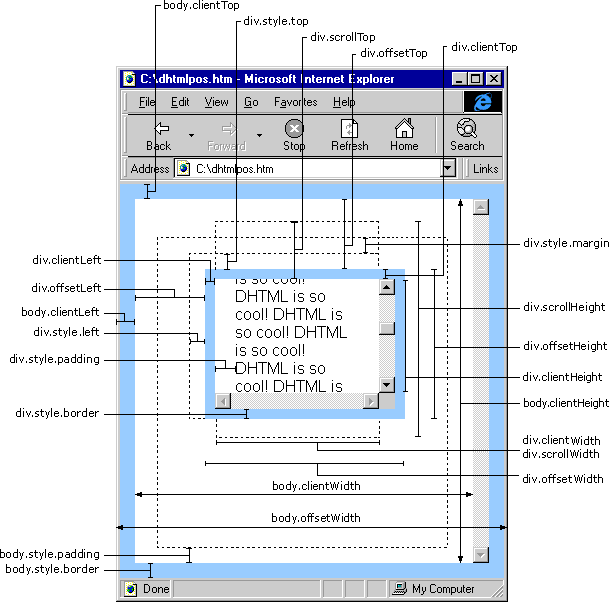
对象的可见宽度,包含滚动条和border。非标准属性,但各浏览器都支持
只读属性。这两个属性返回的是元素的高度或宽度,包括元素的边框、内边距和滚动条。返回值是一个经过四舍五入的整数
# clientWidth/clientHeight
对象的可见宽度,不包含滚动条和border。
# scrollWidth/scrollHeight(慎用)
元素完整的高度和宽度,overflow:hidden的部分也计算在内。
只读属性。返回元素内容的整体尺寸,包括元素看不见的部分(需要滚动才能看见的)。返回值包括padding,但不包括margin和border。
# offsetLeft/offsetTop
只读属性。要确定的这两个属性的值,首先得确定元素的offsetParent。offsetParent指的是距该元素最近的position不为static的祖先元素,如果没有则指向body元素。确定了offsetParent,offsetLeft指的是元素左侧偏移offsetParent的距离,同理offsetTop指的是上侧偏移的距离。
# clientTop/clientLeft
这个属性测试下来的结果是=border。
# scrollLeft/scrollTop(IE6计算方式不同)
设置或返回已经滚动到元素的左边界或上边界的像素数。
# 比较offsetHeight/clientHeight/scrollHeight
- 共同点:3个值都和元素的margin无关。
- 差 异:
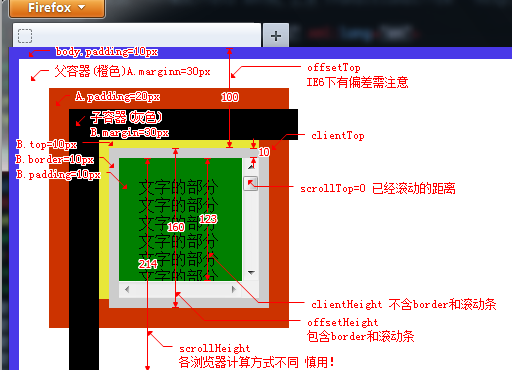
- offsetHeight = height+padding+border
- clientHeight = height+padding-滚动条的宽度(如果有滚动条)
- scrollHeight 获得的是元素的实际宽度影藏的部分也计算在内
- 备 注:
- 1.Jquery中的css("height")/height()不计算padding/border/滚动条。
- 2.offsetWidth、clientWidth、scrollWidth同理。
# 比较offsetTop/clientTop/scrollTop
- offsetTop:元素相对body的Top值(元素border以外到body.padding以内)
- clientTop = offsetTop-(height+padding)=border
- scrollTop:元素的滚动值
# Element.getBoundingClientRect()
只读,返回浮点值。这个方法非常有用,常用于确定元素相对于视口的位置。
该方法会返回一个DOMRect对象,包含left, top, width, height, bottom, right六个属性:
left, right, top, bottom:都是元素(不包括margin)相对于视口的原点(视口的上边界和左边界)的距离。
height, width:元素的整体尺寸,包括被滚动隐藏的部分;padding和border参与计算。
另外,heigth=bottom-top, width=right-left。
# 滚动到顶部
// 使用document.documentElement.scrollTop 或 document.body.scrollTop 获取到顶部的距离,从顶部
// 滚动一小部分距离。使用window.requestAnimationFrame()来滚动。
// @example
// scrollToTop();
function scrollToTop() {
  var c = document.documentElement.scrollTop || document.body.scrollTop;

  if (c > 0) {
    window.requestAnimationFrame(scrollToTop);
    window.scrollTo(0, c - c / 8);
  }
}
2
3
4
5
6
7
8
9
10
11
12
# scrollToTop:此函数功能将页面平滑的滚动到页面的顶部
const scrollToTop = () => {
  const c = document.documentElement.scrollTop || document.body.scrollTop;
  if (c > 0) {
    window.requestAnimationFrame(scrollToTop);
    window.scrollTo(0, c - c / 8);
  }
};

scrollToTop();
2
3
4
5
6
7
8
9
# 返回顶部的通用方法
function backTop(btnId) {
  var btn = document.getElementById(btnId);
  var d = document.documentElement;
  var b = document.body;
  window.onscroll = set;
  btn.style.display = "none";
  btn.onclick = function() {
    btn.style.display = "none";
    window.onscroll = null;
    this.timer = setInterval(function() {
      d.scrollTop -= Math.ceil((d.scrollTop + b.scrollTop) * 0.1);
      b.scrollTop -= Math.ceil((d.scrollTop + b.scrollTop) * 0.1);
      if (d.scrollTop + b.scrollTop == 0)
        clearInterval(btn.timer, (window.onscroll = set));
    }, 10);
  };
  function set() {
    btn.style.display = d.scrollTop + b.scrollTop > 100 ? "block" : "none";
  }
}
backTop("goTop");
2
3
4
5
6
7
8
9
10
11
12
13
14
15
16
17
18
19
20
21
# 4.如何获取当前页面的滚动位置
const getScrollPosition = (el = window) => ({
  x: el.pageXOffset !== undefined ? el.pageXOffset : el.scrollLeft,
  y: el.pageYOffset !== undefined ? el.pageYOffset : el.scrollTop
});

// 事例
getScrollPosition(); // {x: 0, y: 200}
2
3
4
5
6
7
# 5.如何平滑滚动到页面顶部
const scrollToTop = () => {
  const c = document.documentElement.scrollTop || document.body.scrollTop;
  if (c > 0) {
    window.requestAnimationFrame(scrollToTop);
    window.scrollTo(0, c - c / 8);
  }
}

// 事例
scrollToTop()
2
3
4
5
6
7
8
9
10
window.requestAnimationFrame() 告诉浏览器——你希望执行一个动画,并且要求浏览器在下次重绘之前调用指定的回调函数更新动画。该方法需要传入一个回调函数作为参数,该回调函数会在浏览器下一次重绘之前执行。
requestAnimationFrame:优势:由系统决定回调函数的执行时机。60Hz的刷新频率,那么每次刷新的间隔中会执行一次回调函数,不会引起丢帧,不会卡顿。
# 11、bottomVisible:用于检测页面是否滚动到页面底部
const bottomVisible = () =>
  document.documentElement.clientHeight + window.scrollY >=
  (document.documentElement.scrollHeight ||
    document.documentElement.clientHeight);

bottomVisible(); // true
2
3
4
5
6
# 11、bottomVisible
用于检测页面是否滚动到页面底部。
const bottomVisible = () =>
  document.documentElement.clientHeight + window.scrollY >=
  (document.documentElement.scrollHeight ||
    document.documentElement.clientHeight);

bottomVisible(); // true
2
3
4
5
6
# 上滚动以显示 HTML 元素,向下滚动以将其隐藏
/**
 * 下滚动时隐藏HTML元素。
 * @param {string} 元素的 id
 * @param {string} distance in px ex: "100px"
 */
export const scrollToHide = (id, distance) => {
  let prevScrollpos = window.pageYOffset;
  window.onscroll = () => {
    const currentScrollPos = window.pageYOffset;
    if (prevScrollpos > currentScrollPos) {
      document.getElementById(id).style.transform = `translateY(${distance})`;
    } else {
      document.getElementById(id).style.transform = `translateY(-${distance})`;
    }
    prevScrollpos = currentScrollPos;
  };
};
2
3
4
5
6
7
8
9
10
11
12
13
14
15
16
17
# 获取页面高度
function getPageHeight() {
  var g = document,
    a = g.body,
    f = g.documentElement,
    d = g.compatMode == "BackCompat" ? a : g.documentElement;
  return Math.max(f.scrollHeight, a.scrollHeight, d.clientHeight);
}
2
3
4
5
6
7
# 获取页面scrollLeft
function getPageScrollLeft() {
  var a = document;
  return a.documentElement.scrollLeft || a.body.scrollLeft;
}
2
3
4
# 获取页面scrollTop
function getPageScrollTop() {
  var a = document;
  return a.documentElement.scrollTop || a.body.scrollTop;
}
2
3
4
# 获取页面可视高度
function getPageViewHeight() {
  var d = document,
    a = d.compatMode == "BackCompat" ? d.body : d.documentElement;
  return a.clientHeight;
}
2
3
4
5
# 获取页面可视宽度
function getPageViewWidth() {
  var d = document,
    a = d.compatMode == "BackCompat" ? d.body : d.documentElement;
  return a.clientWidth;
}
2
3
4
5
# 获取页面宽度
function getPageWidth() {
  var g = document,
    a = g.body,
    f = g.documentElement,
    d = g.compatMode == "BackCompat" ? a : g.documentElement;
  return Math.max(f.scrollWidth, a.scrollWidth, d.clientWidth);
}
2
3
4
5
6
7
# 获取移动设备屏幕宽度
function getScreenWidth() {
  var smallerSide = Math.min(screen.width, screen.height);
  var fixViewPortsExperiment =
    rendererModel.runningExperiments.FixViewport ||
    rendererModel.runningExperiments.fixviewport;
  var fixViewPortsExperimentRunning =
    fixViewPortsExperiment && fixViewPortsExperiment.toLowerCase() === "new";
  if (fixViewPortsExperiment) {
    if (this.isAndroidMobileDevice() && !this.isNewChromeOnAndroid()) {
      smallerSide = smallerSide / window.devicePixelRatio;
    }
  }
  return smallerSide;
}
2
3
4
5
6
7
8
9
10
11
12
13
14
# 获取网页被卷去的位置
function getScrollXY() {
  return document.body.scrollTop
    ? {
        x: document.body.scrollLeft,
        y: document.body.scrollTop
      }
    : {
        x: document.documentElement.scrollLeft,
        y: document.documentElement.scrollTop
      };
}
2
3
4
5
6
7
8
9
10
11