
# 拖拽
Draggable 、LongPressDraggable 和 DragTarget
# Draggable
Draggable(
  child: Container(
    height: 100,
    width: 100,
    alignment: Alignment.center,
    decoration: BoxDecoration(
      color: Colors.red,
      borderRadius: BorderRadius.circular(10)
    ),
    child: Text('孟',style: TextStyle(color: Colors.white,fontSize: 18),),
  ),
  feedback: Container(
    height: 100,
    width: 100,
    alignment: Alignment.center,
    decoration: BoxDecoration(
        color: Colors.blue,
        borderRadius: BorderRadius.circular(10)
    ),
    child: Text('孟',style: TextStyle(color: Colors.white,fontSize: 18),),
  ),
)
1
2
3
4
5
6
7
8
9
10
11
12
13
14
15
16
17
18
19
20
21
22
2
3
4
5
6
7
8
9
10
11
12
13
14
15
16
17
18
19
20
21
22
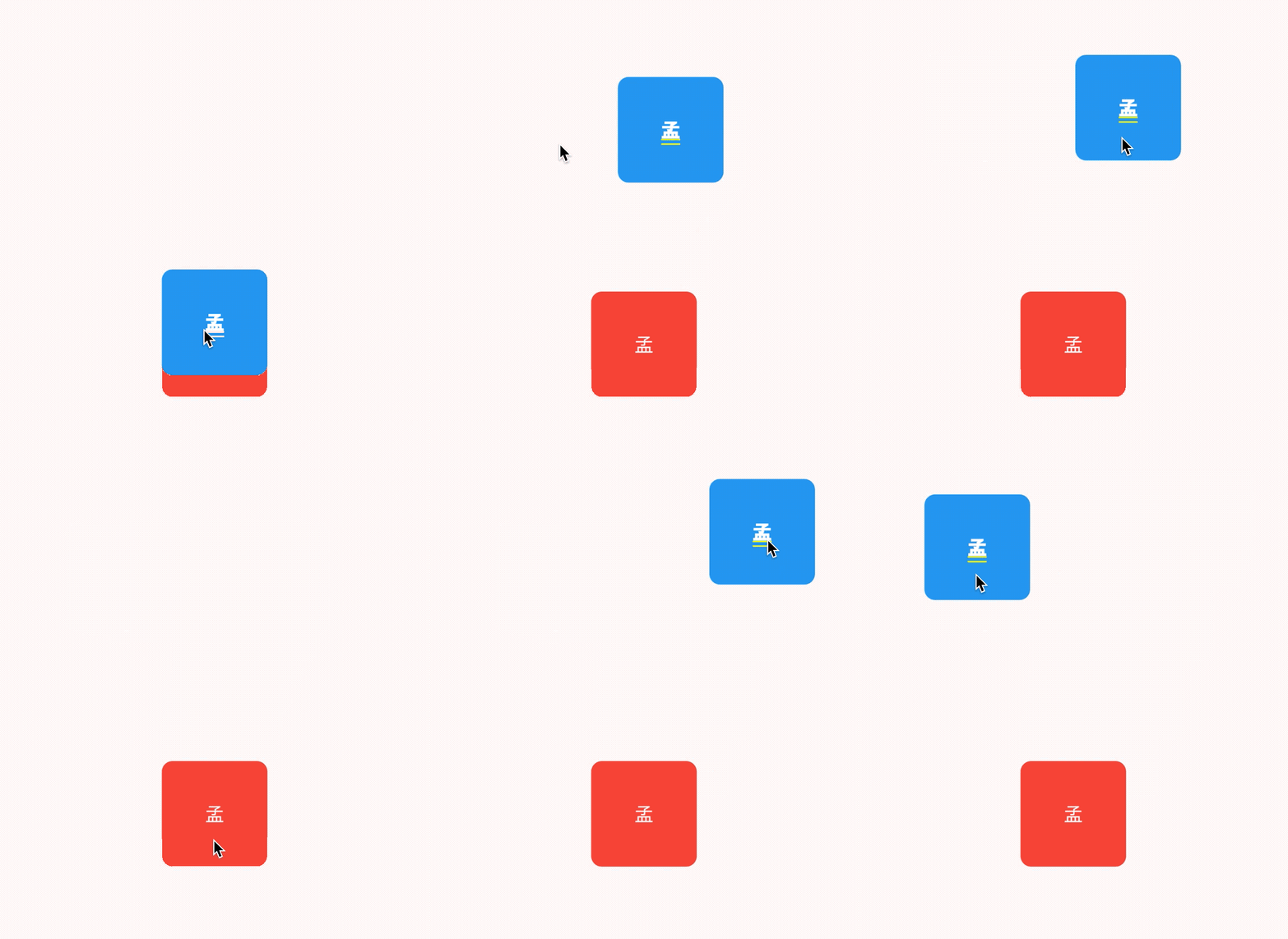
蓝色的组件是 feedback,如果想在拖动的时候子组件显示其他样式可以使用 childWhenDragging 参数,
Draggable(
  childWhenDragging: Container(
    height: 100,
    width: 100,
    alignment: Alignment.center,
    decoration: BoxDecoration(
        color: Colors.grey, borderRadius: BorderRadius.circular(10)),
    child: Text(
      '孟',
      style: TextStyle(color: Colors.white, fontSize: 18),
    ),
  ),
  ...
)
1
2
3
4
5
6
7
8
9
10
11
12
13
14
2
3
4
5
6
7
8
9
10
11
12
13
14
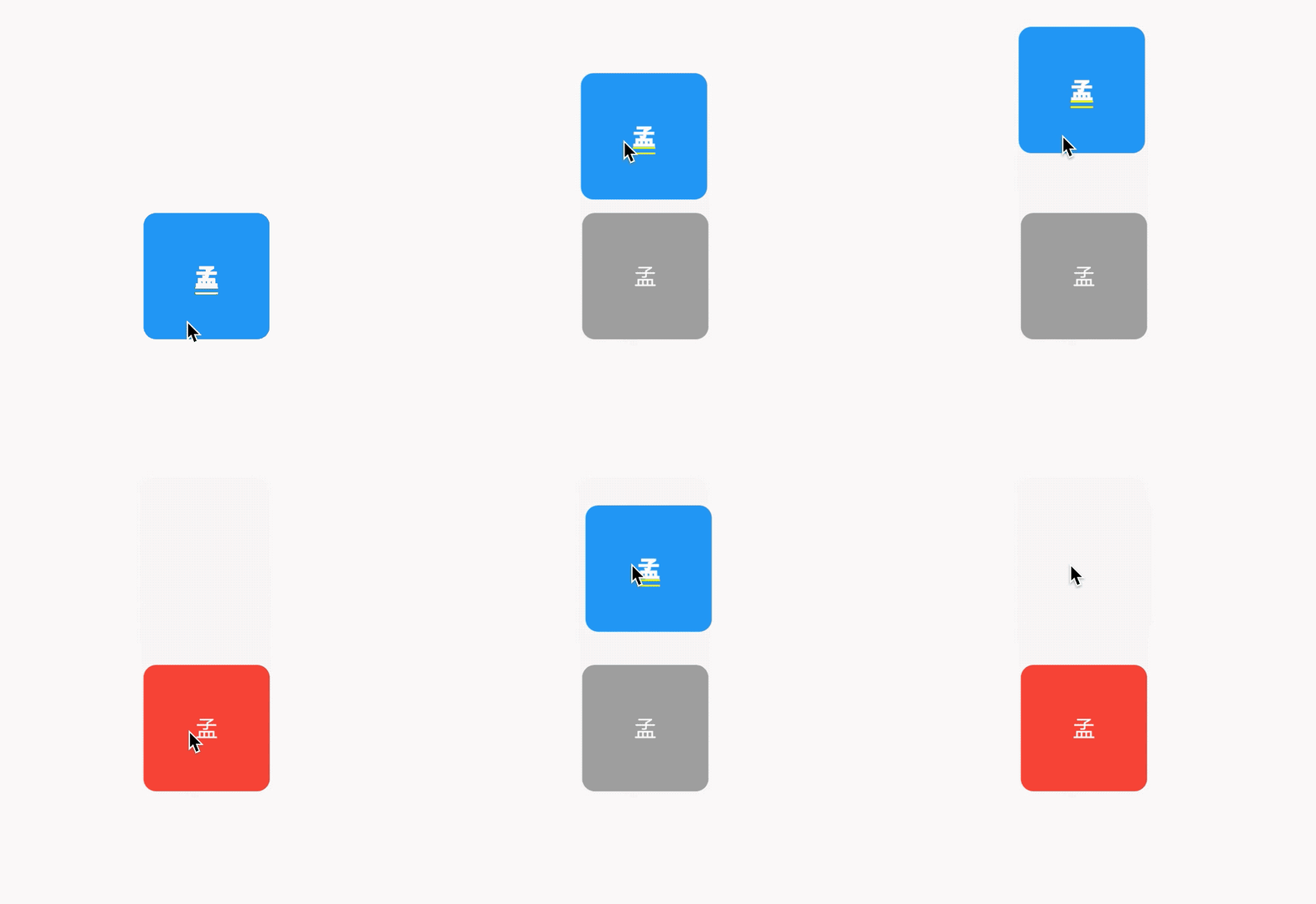
- 控制拖动的方向,比如只允许垂直方向移动
- axis: Axis.vertical
Draggable组件为我们提供了4中拖动过程中的回调事件,用法如下:
Draggable(
  onDragStarted: (){
    print('onDragStarted');
  },
  onDragEnd: (DraggableDetails details){
    print('onDragEnd:$details');
  },
  onDraggableCanceled: (Velocity velocity, Offset offset){
    print('onDraggableCanceled velocity:$velocity,offset:$offset');
  },
  onDragCompleted: (){
    print('onDragCompleted');
  },
  ...
)
1
2
3
4
5
6
7
8
9
10
11
12
13
14
15
2
3
4
5
6
7
8
9
10
11
12
13
14
15
# DragTarget
DragTarget就像他的名字一样,指定一个目的地,Draggable组件可以拖动到此控件
DragTarget(
  builder: (BuildContext context, List<dynamic> candidateData,
      List<dynamic> rejectedData) {
      ...
  }
)
1
2
3
4
5
6
2
3
4
5
6
DragTarget有3个回调,说明如下:
- onWillAccept:拖到该控件上时调用,需要返回true或者false,返回true,松手后会回调onAccept,否则回调onLeave。
- onAccept:onWillAccept返回true时,用户松手后调用。
- onLeave:onWillAccept返回false时,用户松手后调用。