curl
curl是一个非常实用的、用来与服务器之间传输数据的工具;支持的协议包括 (DICT, FILE, FTP, FTPS, GOPHER, HTTP, HTTPS, IMAP, IMAPS, LDAP, LDAPS, POP3, POP3S, RTMP, RTSP, SCP, SFTP, SMTP, SMTPS, TELNET and TFTP),curl设计为无用户交互下完成工作;curl提供了一大堆非常有用的功能,包括代理访问、用户认证、ftp上传下载、HTTP POST、SSL连接、cookie支持、断点续传...。
一、最常用的curl命令
1、发送GET请求
curl URL
curl URL?a=1&b=nihao
2、发送POST请求
curl -X POST -d 'a=1&b=nihao' URL
3、发送json格式请求
curl -H "Content-Type: application/json" -X POST -d '{"abc":123,"bcd":"nihao"}' URL
curl -H "Content-Type: application/json" -X POST -d @test.json URL
其中,-H代表header头,-X是指定什么类型请求(POST/GET/HEAD/DELETE/PUT/PATCH),-d代表传输什么数据。这几个是最常用的。
查看所有curl命令
man curl
# 或者
curl -h
- 请求头:
H,A,e - 响应头:
I,i,D - cookie:
b,c,j - 传输:
F(POST),G(GET),T(PUT),X - 输出:
o,O,w - 断点续传:
r - 调试:
v,--trace,--trace-ascii,--trace-time
二、curl命令语法与curl命令参数详解
1、curl命令语法
curl [options] [URL...]
2、curl命令参数详解
由于linux curl功能十分强大,所以命令参数十分多
| 参数组 | 参数 | 描述 |
|---|---|---|
| url | url |
需要抓取的一到多个URLs; 多个下面通配符的方式: 1、http://{www,ftp,mail}.aiezu.com; 2、http://aiezu.com/images/[001-999].jpg; 3、http://aiezu.com/images/[1-999].html; 4、ftp://aiezu.com/file[a-z].txt |
| 请求头 | -H "name: value"--header "name: value" |
(HTTP)添加一个http header(http请求头); |
| 请求头 | -H "name:"--header "name:" |
(HTTP)移除一个http header(http请求头); |
| 请求头 | -A "string"--user-agent "string" |
(HTTP)设置Http请求头“User-Agent”,服务器通过“User-Agent”可以判断客户端使用的浏览器名称和操作系统类型,伪造此参数能导致服务器做出错误判断。 也可以使用“-H”, “--header option”设置此选项; |
| 请求头 | -e <URL>--referer <URL> |
(HTTP)设置访问时的来源页面,告诉http服务从哪个页面进入到此页面;-e "aiezu.com"相当于-H "Referer:www.qq.com"; |
| 响应头 | -I--head |
(HTTP)只输出HTTP-header,不获取内容(HTTP/FTP/FILE)。 用于HTTP服务时,获取页面的http头; (如: curl -I http://aiezu.com)用于FTP/FILE时,将会获取文件大小、最后修改时间; (如: curl -I file://test.txt) |
| 响应头 | -i--include |
(HTTP)输出HTTP头和返回内容; |
| 响应头 | -D <file>--dump-header <file> |
(HTTP)转储http响应头到指定文件; |
cookie |
-b name=data--cookie name=data |
(HTTP)发送cookie数据到HTTP服务器,数据格式为:NAME1=VALUE1; NAME2=VALUE2;如果行中没有“=”,将把参数值当作cookie文件名; 这个cookie数据可以是由服务器的http响应头“Set-Cookie:”行发送过来的; |
cookie |
-c filename--cookie-jar file name |
(HTTP)完成操作后将服务器返回的cookies保存到指定的文件; 指定参数值为“ -”将定向到标准输出“如控制台”; |
cookie |
-j--junk-session-cookies |
(HTTP)告诉curl放弃所有的"session cookies"; 相当于重启浏览器; |
| 代理 | -x host:port-x [protocol://[user:pwd@]host[:port]--proxy [protocol://[user:pwd@]host[:port] |
使用HTTP代理访问;如果未指定端口,默认使用8080端口; protocol默认为http_proxy,其他可能的值包括: http_proxy、HTTPS_PROXY、socks4、socks4a、socks5; 如: --proxy 8.8.8.8:8080;-x "http_proxy://aiezu:123@aiezu.com:80" |
| 代理 | -p--proxytunnel |
将“-x”参数的代理,作为通道的方式去代理非HTTP协议,如ftp; |
| 代理 | --socks4 <host[:port]>--socks4a <host[:port]>--socks5 <host[:port]> |
使用SOCKS4代理; 使用SOCKS4A代理; 使用SOCKS5代理; 此参数会覆盖“-x”参数; |
| 代理 | --proxy-anyauth--proxy-basic--proxy-diges--proxy-negotiate--proxy-ntlm |
http代理认证方式,参考:--anyauth--basic--diges--negotiate--ntlm |
| 代理 | -U <user:password>--proxy-user <user:password> |
设置代理的用户名和密码; |
| 数据传输 | -G--get |
如果使用了此参数,“-d/”、“--data”、“--data-binary”参数设置的数据,讲附加在url上,以GET的方式请求; |
| 数据传输 | -d @file-d "string"--data "string"--data-ascii "string"--data-binary "string"--data-urlencode "string" |
(HTTP)使用HTTP POST方式发送“key/value对”数据,相当于浏览器表单属性(method="POST",enctype="application/x-www-form-urlencoded")-d,--data:HTTP方式POST数据;--data-ascii:HTTP方式POST ascii数据;--data-binary:HTTP方式POST二进制数据;--data-urlencode:HTTP方式POST数据(进行urlencode);如果数据以“@”开头,后紧跟一个文件,将post文件内的内容; |
| 数据传输 | -F name=@file-F name=<file-F name=content--form name=content |
(HTTP)使用HTTP POST方式发送类似“表单字段”的多类型数据,相当于同时设置浏览器表单属性(method="POST",enctype="multipart/form-data"),可以使用此参数上传二进制文件。如果字段内容以“ @”开头,剩下的部分应该是文件名,curl将会上传此文件,如:curl -F "pic=@pic.jpg" http://aiezu.com;curl -F "page=@a.html;type=text/html" http://aiezu.comcurl -F "page=@/tmp/a;filename=a.txt" http://aiezu.com如果字段内容以“ <”开头,剩下的部分应该是文件名,curl将从文件中获取作为此字段的值,如:curl -F "text=<text.txt" http://aiezu.com; |
| 数据传输 | --form-string <key=value> |
(HTTP)类似于“--form”,但是“@”、“<”无特殊含义; |
| 数据传输 | -T file--upload-file file |
通过“put”的方式将文件传输到远程网址; 选项参数只使用字符" -",将通过stdin读入文件内容;如: cat test.txt|curl "http://aiezu.com/a.php" -T -curl "http://aiezu.com/a.php" -T - <test.txt此参数也可以使用通配符: curl -T "{file1,file2}" http://aiezu.comcurl -T "img[1-1000].png" http://aiezu.com |
| 断点续传 | -C <offset>--continue-at <offset> |
断点续转,从文件头的指定位置开始继续下载/上传; offset续传开始的位置,如果offset值为“-”,curl会自动从文件中识别起始位置开始传输; |
| 断点续传 | -r <range>--range <range> |
(HTTP/FTP/SFTP/FILE) 只传输内容的指定部分:0-499:最前面500字节;-500:最后面500字节;9500-:最前面9500字节;0-0,-1:最前面和最后面的1字节;100-199,500-599:两个100字节; |
| 认证 | --basic |
(HTTP)告诉curl使用HTTP Basic authentication(HTTP协议时),这是默认认证方式; |
| 认证 | --ntlm |
(HTTP)使用NTLM身份验证方式,用于HTTP协议; 一般用于IIS使用NTLM的网站; |
| 认证 | --digest |
(HTTP)使用HTTP Digest authentication加密,用于HTTP协议; 配合“ -u/--user”选项,防止密码使用明文方式发送; |
| 认证 | --negotiate |
(HTTP)使用GSS-Negotiate authentication方式,用于HTTP协议; 它主要目的是为它的主要目的是为kerberos5认证提供支持支持; |
| 认证 | --anyauth |
(HTTP)告诉curl自动选择合适的身份认证方法,并选用最安全的方式; |
| 认证 | -u user:password--user user:password |
使用用户名、密码认证,此参数会覆盖“-n”、“--netrc”和“--netrc-optional”选项; 如果你只提供用户名,curl将要求你输入密码; 如果你使用“SSPI”开启的curl库做“NTLM”认证,可以使用不含用户名密码的“-u:”选项,强制curl使用当前登录的用户名密码进行认证; 此参数相当于设置http头“Authorization:”; |
| 证书 | -E <证书[:密码]>--cert <证书[:密码]> |
(SSL)指定“PEM”格式的证书文件和证书密码; |
| 证书 | --cert-type <type> |
(SSL)告诉curl所提供证书的类型:PEM、DER、ENG等; 默认为“PEM”; |
| 证书 | --cacert <CA证书> |
(SSL)告诉curl所以指定的CA证书文件,必须是“PEM”格式; |
| 证书 | --capath <CA证书路径> |
(SSL)告诉curl所以指定目录下的CA证书用来验证; 这些证书必须是“PEM”格式; |
| 证书 | --crlfile <file> |
(HTTPS/FTPS)提供一个PEM格式的文件,用于指定被吊销的证书列表; |
| 证书 | -k--insecure |
(SSL)设置此选项将允许使用无证书的不安全SSL进行连接和传输。 |
| SSL其他 | --ciphers <list of ciphers> |
(SSL)指定SSL要使用的加密方式;如:“aes_256_sha_256”; |
| SSL其他 | --engine <name> |
设置一个OpenSSL加密引擎用于加密操作; 使用“curl --engine list”查看支持的加密引擎列表; |
| SSL其他 | --random-file |
(SSL)指定包含随机数据的文件路径名;数据是用来为SSL连接产生随机种子为; |
| SSL其他 | --egd-file <file> |
(SSL)为随机种子生成器EGD(Entropy Gathering Daemon socket)指定的路径名; |
| SSL其他 | -1/--tlsv1--tlsv1.0--tlsv1.1--tlsv1.2-2/--sslv2-3/--sslv3 |
(SSL)使用TLS版本2与远程服务器通讯; (SSL)使用TLS 1.0版本与远程服务器通讯; (SSL)使用TLS 1.1版本与远程服务器通讯; (SSL)使用TLS 1.2版本与远程服务器通讯; (SSL)使用SSL版本2与远程服务器通讯; (SSL)使用SSL版本3与远程服务器通讯; |
| 私钥公钥 | --key <key> |
(SSL/SSH)指定一个私钥文件名;为指定时自动尝试使用下面文件:“~/.ssh/id_rsa”、“~/.ssh/id_dsa”、“./id_rsa'”、 “./id_dsa”; |
| 私钥公钥 | --key-type <type> |
(SSL)指定私钥文件类型,支持:DER、PEM、ENG,默认是PEM; |
| 私钥公钥 | --pass <phrase> |
(SSL/SSH)指定私钥文件的密码; |
| 私钥公钥 | --pubkey <key> |
(SSH)使用指定文件提供的您公钥; |
| FTP | -P--ftp-port <接口> |
(FTP)FTP主动模式时,设置一个地址等待服务器的连接,如: 网卡:eth1 IP:8.8.8.8 主机名:aiezu.com 可以加端口号:eth1:20000-21000; |
| FTP | --crlf |
(FTP)上传时将换行符(LF)转换为回车换行(CRLF); |
| FTP | --ftp-account [data] |
(FTP)ftp帐号信息; |
| FTP | --ftp-method [method] |
(FTP)可选值:multicwd/nocwd/singlecwd; |
| FTP | --ftp-pasv |
(FTP)使用使用PASV(被动)/EPSV模式; |
| FTP | --ftp-skip-pasv-ip |
(FTP)使用PASV的时,跳过指定IP; |
| FTP | --ftp-create-dirs |
(FTP)上传时自动创建远程目录; |
| FTP | -l--list-only |
(FTP)列出ftp文件列表; |
| FTP | -B--use-ascii |
(FTP/LDAP)使用Ascii传输模式,用于FTP、LDAP;在ftp中相当与使用了“type=A;”模式。 |
| FTP | --disable-epsv |
(FTP)告诉curl在PASV(被动模式)时不要使用EPSV; |
| FTP | --disable-eprt |
(FTP)告诉curl在主动模式时禁用EPRT和LPRT; |
| 限速 | --limit-rate <speed> |
限制curl使用的最大带宽;如果未指定单位,默认单位为“bytes/秒”,你也可以指定单位为“K”、“M”、“G”等单位,如:“--limit-rate 1m”为限制最大使用带宽为“1m字节/秒”; |
| 限速 | -y--speed-time <time> |
If a download is slower than speed-limit bytes per second during a speed-time period, the download gets aborted. If speed-time is used, the default speed-limit will be 1 unless set with -Y. This option controls transfers and thus will not affect slow connects etc. If this is a concern for you, try the --connect-timeout option. |
| 限速 | -Y--speed-limit <speed> |
If a download is slower than this given speed (in bytes per second) for speed-time seconds it gets aborted. speed-time is set with -y and is 30 if not set. |
| 其他选项 | -0/--http1.0 |
(HTTP) 强制curl使用HTTP 1.0而不是使用默认的HTTP 1.1; |
| 其他选项 | --interface <name> |
使用指定的网卡接口访问;curl --interface eth0 http://aiezu.comcurl --interface 10.0.0.101 http://aiezu.com |
| 其他选项 | -X <command>--request <command> |
(HTTP)指定与服务器通信使用的请求方法,如:GET、PUT、POST、DELETE等,默认GET; |
| 其他选项 | --keepalive-time <seconds> |
设置keepalive时间 |
| 其他选项 | --no-keepalive |
关闭keepalive功能; |
| 其他选项 | --no-buffer |
禁用对输出流缓冲; |
| 其他选项 | --buffer |
启用输出流缓冲; |
| 其他选项 | -L--location |
(HTTP/HTTPS)追随http响应头“Location:”定向到跳转后的页面; (在http响应码为3XX时使用,如301跳转、302跳转) |
| 其他选项 | --location-trusted |
(HTTP/HTTPS)同“--location”,但跳转后会发送跳转前的用户名和密码; |
| 其他选项 | --compressed |
(HTTP)请求对返回内容使用压缩算法进行压缩;curl支持对gzip压缩进行解压; |
| 其他选项 | --connect-timeout <seconds> |
指定最大连接超时,单位“秒”; |
| 其他选项 | -m seconds--max-time seconds |
限制整个curl操作的最长时间,单位为秒; |
| 其他选项 | -s--silent |
安静模式。不要显示进度表或错误消息; |
| 其他选项 | -#--progress-bar |
显示进度条; |
| 错误选项 | -f--fail |
(HTTP)连接失败时(400以上错误)不返回默认错误页面,而是返回一个curl错误码“22”; |
| 其他选项 | --retry <num>--retry-delay <seconds>--retry-max-time <seconds> |
失败重试次数; 重试间隔时间; 最大重试时间; |
| 其他选项 | -S--show-error |
安静模式下显示错误信息; |
| 其他选项 | --stderr <file> |
错误信息保存文件; |
| 输出 | -o file--output file |
将返回内容输出到文件。 如果是用过通配符获取多个url,可以使用“#”后跟“数字序号”,curl会自动将它替换对应的关键词,如: curl "http://aiezu.com/{a,b}.txt" -o "#1.txt";将保存为:“a.txt”,“b.txt”; curl "http://aiezu.com/{a,b}_[1-3].txt" -o "#1#2.txt";将保存为:a1.txt、a2.txt、a3.txt、b1.txt、b2.txt、b3.txt 如果要根据规则创建保存目录,参考:“--create-dirs” 指定“-”将定向到标准输出“如控制台”; |
| 输出 | -O--remote-name |
将返回内容输出到当前目录下,和url中文件名相同的文件中(不含目录); |
| 输出 | --create-dirs |
与“-o”参数配合使用,创建必要的本地目录层次结构 |
| 输出 | -w--write-out format |
操作完成后在返回信息尾部追加指定的内容;要追加的内容可以是一个字符串“string”、从文件中获取“@filename”、从标准输入中获取“@-” 格式参数中可以用 %{variable_name}方式使用响应信息的相关变量,如:%{content_type}、%{http_code}、%{local_ip}...,更多变量参考“man curl”获取;格式参数可以使用 “\n”、“\r”、“\t”等转义字符; |
| 调试 | --trace <file> |
转储所有传入和传出的数据到文件,包括描述信息; 使用“-”作为文件名将输出发送到标准输出。 |
| 调试 | --trace-ascii file |
转储所有传入和传出的数据到文件,包括描述信息,只转储ASCII部分,更容易阅读; 使用“-”作为文件名将输出发送到标准输出。 这个选项会覆盖之前使用的 -v、 --verbose、 --trace-ascii选项; |
| 调试 | -trace-time |
转储文件中添加时间信息; |
| 调试 | -K--config <config file> |
从配置文件中读取参数,参考:http://curl.haxx.se/docs/ |
| 调试 | -v--verbose |
显示更详细的信息,调试时使用; |
| 帮助 | -M--manual |
显示完整的帮助手册; |
| 帮助 | -h--help |
linux curl用法帮助; |
curl -h 的完整参数解释
-a/--append |
上传文件时,附加到目标文件 |
|---|---|
--anyauth |
可以使用“任何”身份验证方法 |
--basic |
使用HTTP基本验证 |
-B/--use-ascii |
使用ASCII文本传输 |
-d/--data <data> |
HTTP POST方式传送数据 |
--data-ascii <data> |
以ascii的方式post数据 |
--data-binary <data> |
以二进制的方式post数据 |
--negotiate |
使用HTTP身份验证 |
--digest |
使用数字身份验证 |
--disable-eprt |
禁止使用EPRT或LPRT |
--disable-epsv |
禁止使用EPSV |
--egd-file <file> |
为随机数据(SSL)设置EGD socket路径 |
--tcp-nodelay |
使用TCP_NODELAY选项 |
-E/--cert <cert[:passwd]> |
客户端证书文件和密码 (SSL) |
--cert-type <type> |
证书文件类型 (DER/PEM/ENG) (SSL) |
--key <key> |
私钥文件名 (SSL) |
--key-type <type> |
私钥文件类型 (DER/PEM/ENG) (SSL) |
--pass <pass> |
私钥密码 (SSL) |
--engine <eng> |
加密引擎使用 (SSL). "--engine list" for list |
--cacert <file> |
CA证书 (SSL) |
--capath <directory> |
CA目 (made using c_rehash) to verify peer against (SSL) |
--ciphers <list> |
SSL密码 |
--compressed |
要求返回是压缩的形势 (using deflate or gzip) |
--connect-timeout <seconds> |
设置最大请求时间 |
--create-dirs |
建立本地目录的目录层次结构 |
--crlf |
上传是把LF转变成CRLF |
--ftp-create-dirs |
如果远程目录不存在,创建远程目录 |
--ftp-method [multicwd/nocwd/singlecwd] |
控制CWD的使用 |
--ftp-pasv |
使用 PASV/EPSV 代替端口 |
--ftp-skip-pasv-ip |
使用PASV的时候,忽略该IP地址 |
--ftp-ssl |
尝试用 SSL/TLS 来进行ftp数据传输 |
--ftp-ssl-reqd |
要求用 SSL/TLS 来进行ftp数据传输 |
-F/--form <name=content> |
模拟http表单提交数据 |
-form-string <name=string> |
模拟http表单提交数据 |
-g/--globoff |
禁用网址序列和范围使用{}和[] |
-G/--get |
以get的方式来发送数据 |
-h/--help |
帮助 |
-H/--header <line> |
自定义头信息传递给服务器 |
--ignore-content-length |
忽略的HTTP头信息的长度 |
-i/--include |
输出时包括protocol头信息 |
-I/--head |
只显示文档信息 |
-j/--junk-session-cookies |
读取文件时忽略session cookie |
--interface <interface> |
使用指定网络接口/地址 |
--krb4 <level> |
使用指定安全级别的krb4 |
-k/--insecure |
允许不使用证书到SSL站点 |
-K/--config |
指定的配置文件读取 |
-l/--list-only |
列出ftp目录下的文件名称 |
--limit-rate <rate> |
设置传输速度 |
--local-port<NUM> |
强制使用本地端口号 |
-m/--max-time <seconds> |
设置最大传输时间 |
--max-redirs <num> |
设置最大读取的目录数 |
--max-filesize <bytes> |
设置最大下载的文件总量 |
-M/--manual |
显示全手动 |
-n/--netrc |
从netrc文件中读取用户名和密码 |
--netrc-optional |
使用 .netrc 或者 URL来覆盖-n |
--ntlm |
使用 HTTP NTLM 身份验证 |
-N/--no-buffer |
禁用缓冲输出 |
-p/--proxytunnel |
使用HTTP代理 |
--proxy-anyauth |
选择任一代理身份验证方法 |
--proxy-basic |
在代理上使用基本身份验证 |
--proxy-digest |
在代理上使用数字身份验证 |
--proxy-ntlm |
在代理上使用ntlm身份验证 |
-P/--ftp-port <address> |
使用端口地址,而不是使用PASV |
-Q/--quote <cmd> |
文件传输前,发送命令到服务器 |
--range-file |
读取(SSL)的随机文件 |
-R/--remote-time |
在本地生成文件时,保留远程文件时间 |
--retry <num> |
传输出现问题时,重试的次数 |
--retry-delay <seconds> |
传输出现问题时,设置重试间隔时间 |
--retry-max-time <seconds> |
传输出现问题时,设置最大重试时间 |
-S/--show-error |
显示错误 |
--socks4 <host[:port]> |
用socks4代理给定主机和端口 |
--socks5 <host[:port]> |
用socks5代理给定主机和端口 |
-t/--telnet-option <OPT=val> |
Telnet选项设置 |
--trace <file> |
对指定文件进行debug |
--trace-ascii <file> |
Like --跟踪但没有hex输出 |
--trace-time |
跟踪/详细输出时,添加时间戳 |
--url <URL> |
Spet URL to work with |
-U/--proxy-user <user[:password]> |
设置代理用户名和密码 |
-V/--version |
显示版本信息 |
-X/--request <command> |
指定什么命令 |
-y/--speed-time |
放弃限速所要的时间。默认为30 |
-Y/--speed-limit |
停止传输速度的限制,速度时间'秒 |
-z/--time-cond |
传送时间设置 |
-0/--http1.0 |
使用HTTP 1.0 |
-1/--tlsv1 |
使用TLSv1(SSL) |
-2/--sslv2 |
使用SSLv2的(SSL) |
-3/--sslv3 |
使用的SSLv3(SSL) |
--3p-quote |
like -Q for the source URL for 3rd party transfer |
--3p-url |
使用url,进行第三方传送 |
--3p-user |
使用用户名和密码,进行第三方传送 |
-4/--ipv4 |
使用IP4 |
-6/--ipv6 |
使用IP6 |
三、Linux curl命令退出码
下面是linux curl命令的错误代码和她们的相应的错误消息,可能会出现在恶劣的环境。
退出码|错误描述 --|--|-- 1|Unsupported protocol. This build of curl has no support for this protocol. 2|Failed to initialize. 3|URL malformed. The syntax was not correct. 5|Couldn't resolve proxy. The given proxy host could not be resolved. 6|Couldn't resolve host. The given remote host was not resolved. 7|Failed to connect to host. 8|FTP weird server reply. The server sent data curl couldn't parse. 9|FTP access denied. The server denied login or denied access to the particular resource or directory you wanted to reach. Most often you tried to change to a directory that doesn't exist on the server. 11|FTP weird PASS reply. Curl couldn't parse the reply sent to the PASS request. 13|FTP weird PASV reply, Curl couldn't parse the reply sent to the PASV request. 14|FTP weird 227 format. Curl couldn't parse the 227-line the server sent. 15|FTP can't get host. Couldn't resolve the host IP we got in the 227-line. 17|FTP couldn't set binary. Couldn't change transfer method to binary. 18|Partial file. Only a part of the file was transferred. 19|FTP couldn't download/access the given file, the RETR (or similar) command failed. 21|FTP quote error. A quote command returned error from the server. 22|HTTP page not retrieved. The requested url was not found or returned another error with the HTTP error code being 400 or above. This return code only appears if -f/--fail is used. 23|Write error. Curl couldn't write data to a local filesystem or similar. 25|FTP couldn't STOR file. The server denied the STOR operation, used for FTP uploading. 26|Read error. Various reading problems. 27|Out of memory. A memory allocation request failed. 28|Operation timeout. The specified time-out period was reached according to the conditions. 30|FTP PORT failed. The PORT command failed. Not all FTP servers support the PORT command, try doing a transfer using PASV instead! 31|FTP couldn't use REST. The REST command failed. This command is used for resumed FTP transfers. 33|HTTP range error. The range "command" didn't work. 34|HTTP post error. Internal post-request generation error. 35|SSL connect error. The SSL handshaking failed. 36|FTP bad download resume. Couldn't continue an earlier aborted download. 37|FILE couldn't read file. Failed to open the file. Permissions? 38|LDAP cannot bind. LDAP bind operation failed. 39|LDAP search failed. 41|Function not found. A required LDAP function was not found. 42|Aborted by callback. An application told curl to abort the operation. 43|Internal error. A function was called with a bad parameter. 45|Interface error. A specified outgoing interface could not be used. 47|Too many redirects. When following redirects, curl hit the maximum amount. 48|Unknown TELNET option specified. 49|Malformed telnet option. 51|The peer's SSL certificate or SSH MD5 fingerprint was not ok. 52|The server didn't reply anything, which here is considered an error. 53|SSL crypto engine not found. 54|Cannot set SSL crypto engine as default. 55|Failed sending network data. 56|Failure in receiving network data. 58|Problem with the local certificate. 59|Couldn't use specified SSL cipher. 60|Peer certificate cannot be authenticated with known CA certificates. 61|Unrecognized transfer encoding. 62|Invalid LDAP URL. 63|Maximum file size exceeded. 64|Requested FTP SSL level failed. 65|Sending the data requires a rewind that failed. 66|Failed to initialize SSL Engine. 67|The user name, password, or similar was not accepted and curl failed to log in. 68|File not found on TFTP server. 69|Permission problem on TFTP server. 70|Out of disk space on TFTP server. 71|Illegal TFTP operation. 72|Unknown TFTP transfer ID. 73|File already exists (TFTP). 74|No such user (TFTP). 75|Character conversion failed. 76|Character conversion functions required. 77|Problem with reading the SSL CA cert (path? access rights?). 78|The resource referenced in the URL does not exist. 79|An unspecified error occurred during the SSH session. 80|Failed to shut down the SSL connection. 82|Could not load CRL file, missing or wrong format (added in 7.19.0). 83|Issuer check failed (added in 7.19.0). XX|More error codes will appear here in future releases. The existing ones are meant to never change.
四、常见用法
1、下载(option:-o或者option:-O)
- 1.1、下载页面:
curl -o dodo1.jpg http:www.linux.com/dodo1.JPG
#要注意-O这里后面的url要具体到某个文件,不然抓不下来
curl -O http://www.linux.com/dodo1.JPG
- 1.2:循环下载
有时候下载图片可以能是前面的部分名称是一样的,就最后的尾椎名不一样。这样就会把dodo1,dodo2,dodo3,dodo4,dodo5全部保存下来
curl -O http://www.linux.com/dodo[1-5].JPG
- 1.3:下载重命名
在hello/dodo1.JPG的文件下载下来就会变成hello_dodo1.JPG,其他文件依此类推,从而有效的避免了文件被覆盖
curl -o #1_#2.JPG http://www.linux.com/{hello,bb}/dodo[1-5].JPG
由于下载的hello与bb中的文件名都是dodo1,dodo2,dodo3,dodo4,dodo5。因此第二次下载的会把第一次下载的覆盖,这样就需要对文件进行重命名。
curl -O http://www.linux.com/{hello,bb}/dodo[1-5].JPG
- 1.4:分块下载(option:-r)
curl -r 0-100 -o dodo1_part1.JPG http://www.linux.com/dodo1.JPG
curl -r 100-200 -o dodo1_part2.JPG http://www.linux.com/dodo1.JPG
curl -r 200- -o dodo1_part3.JPG http://www.linux.com/dodo1.JPG
cat dodo1_part* > dodo1.JPG  #这样就可以查看dodo1.JPG的内容了
- 1.5:通过ftp下载文件(option:-u)
curl可以通过ftp下载文件,curl提供两种从ftp中下载的语法
curl -O -u 用户名:密码 ftp://www.linux.com/dodo1.JPG
curl -O ftp://用户名:密码@www.linux.com/dodo1.JPG
- 1.6:下载,显示进度条(option:-#)或不显示进度条(option:-s)
curl -# -O http://www.linux.com/dodo1.JPG
curl -s -O http://www.linux.com/dodo1.JPG
- 1.7、下载,断点续传(
-C <offset>)
断点续转,从文件头的指定位置开始继续下载/上传;offset续传开始的位置,如果offset值为“-”,curl会自动从文件中识别起始位置开始传输;
curl -# -o centos6.8.iso -C - http://mirrors.aliyun.com/centos/6.8/isos/x86_64/CentOS-6.8-x86_64-minimal.iso
curl -C -O http://www.linux.com/dodo1.JPG
2、上传文件(option:-T)
curl -T dodo1.JPG -u 用户名:密码 ftp://www.linux.com/img/
3、伪造来源页面|伪造referer|盗链 (option:-e)
很多服务器会检查http访问的referer从而来控制访问。比如:你是先访问首页,然后再访问首页中的邮箱页面,这里访问邮箱的referer地址就是访问首页成功后的页面地址,如果服务器发现对邮箱页面访问的referer地址不是首页的地址,就断定那是个盗连了
#这样就会让服务器其以为你是从www.linux.com点击某个链接过来的
curl -e "www.linux.com" http://mail.linux.com
#告诉爱E族,我是从百度来的
curl -e http://baidu.com http://aiezu.com
4、伪造代理设备(模仿浏览器)
有些网站需要使用特定的浏览器去访问他们,有些还需要使用某些特定的版本。curl内置option:-A可以让我们指定浏览器去访问网站
curl -A "Mozilla/4.0 (compatible; MSIE 8.0; Windows NT 5.0)" http://www.linux.com
#告诉爱E族,我是GOOGLE爬虫蜘蛛(其实我是curl命令)
curl -A " Mozilla/5.0 (compatible; Googlebot/2.1; +http://www.google.com/bot.html)" http://aiezu.com
#告诉爱E族,我用的是微信内置浏览器
curl -A "Mozilla/5.0 AppleWebKit/600 Mobile MicroMessenger/6.0" http://aiezu.com
5、设置http请求
- 5.1、设置http请求头(或option:-H或option:--head)
curl -H "Cache-Control:no-cache" http://aiezu.com
- 5.2、指定proxy服务器以及其端口(option::-x)
#很多时候上网需要用到代理服务器(比如是使用代理服务器上网或者因为使用curl别人网站而被别人屏蔽IP地址的时候),幸运的是curl通过使用内置option:-x来支持设置代理
curl -x 192.168.100.100:1080 http://www.linux.com
6、http响应头
- 6.1、查看http响应头(option:-I)
# 看看本站的http头是怎么样的
curl -I  http://aiezu.com
输出:
HTTP/1.1 200 OK
Date: Fri, 25 Nov 2016 16:45:49 GMT
Server: Apache
Set-Cookie: rox__Session=abdrt8vesprhnpc3f63p1df7j4; path=/
Expires: Thu, 19 Nov 1981 08:52:00 GMT
Cache-Control: no-store, no-cache, must-revalidate, post-check=0, pre-check=0
Pragma: no-cache
Vary: Accept-Encoding
Content-Type: text/html; charset=utf-8
- 6.2、保存http的response里面的header信息(option:-D)
curl -D cookied.txt http://www.linux.com
执行后cookie信息就被存到了cookied.txt里面了 注意:-c(小写)产生的cookie和-D里面的cookie是不一样的。
7、发送表单数据
curl -F "pic=@logo.png" -F "site=aiezu" http://aiezu.com/
8、cookie
- 8.1、发送cookie(option:-b)
#有些网站是使用cookie来记录session信息。对于chrome这样的浏览器,可以轻易处理cookie信息,但在curl中只要增加相关参数也是可以很容易的处理cookie
curl -b "domain=aiezu.com"  http://aiezu.com
#很多网站都是通过监视你的cookie信息来判断你是否按规矩访问他们的网站的,因此我们需要使用保存的cookie信息。内置option: -b
curl -b cookiec.txt http://www.linux.com
- 8.2、保存http的response里面的cookie信息(option:-c)
执行后http的response里面的cookie信息就被存到了cookiec.txt里面了
curl -c cookiec.txt http://www.linux.com
9、测试一个网址
- 9.1、测试一个网址是否可达
curl -v http://www.linux.com
- 9.2、测试网页返回值(
option:-w [format])
curl -o /dev/null -s -w %{http_code} www.linux.com
10、保存访问的网页(>>)
- 10.1:使用linux的重定向功能保存
curl http://www.linux.com >> linux.html
11、请求方式
curl -i -v -H '' -X POST -d '' http:www.test.com/a/b
其中,-X POST -d, -X GET -d, -X PUT -d 分别等价于-F, -G -d, -P
以post请求为例:
- 11.1、
-X POST -d
11.1.1、
POST application/x-www-form-urlencoded
application/x-www-form-urlencoded是默认的
curl -X POST -d "param1=value1¶m2=value2" http://localhost:3000/data
等价于
curl -H "Content-Type:application/x-www-form-urlencoded" -X POST -d "param1=value1¶m2=value2" http://localhost:3000/data
使用数据文件
curl -X POST -d "@data.txt" http://localhost:3000/data
其中data.txt内容如下:param1=value1 m2=value2
(11.1.2)、POST application/json
curl -H "Content-Type:application/json" -X POST -d '{"key1":"value1","key2":"value2"}' http://localhost:3000/data
使用数据文件的话:
curl -X POST -d "@data.json" http://localhost:3000/data
其中data.json内容如下:{"key1":"value1","key2":"value2"} 再举个例子:
curl -H "Content-type:application/json" -X POST -d "{\"app_key\":\"$appKey\",\"time_stamp\":\"$time\"}" http://www.test.com.cn/a/b
- 11.2、-F
curl  -v -H "token: 222" -F "file=@/Users/fungleo/Downloads/401.png" localhost:8000/api/v1/upimg

curl -f http://www.linux.com/error
- 11.3、其它举例
(11.3.1)
curl  -X POST "http://www.test.com/e/f" -H "Content-Type:application/x-www-form-urlencoded;charset=UTF-8" \
-d "a=b" \
-d "c=d" \
-d "e=f" \
-d "g=h"
(11.3.2)、错误:
curl -i -G -d "a=b#1&c=d" http://www.test.com/e/f
正确:要把参数值是特殊符号的用urlencode转换过来
curl -i -G -d "a=b%231&c=d" http://www.test.com/e/f
12、调试
curl -v可以显示一次http通信的整个过程,包括端口连接和http request头信息。 如果觉得还不够,那么下面的命令可以查看更详细的通信过程:
curl --trace output.txt www.baidu.com 或者 curl --trace-ascii output.txt www.baidu.com
运行后,请打开output.txt文件查看。
curl --trace output.txt  http://www.baidu.com
curl --trace-ascii output2.txt  http://www.baidu.com
curl --trace output3.txt --trace-time http://www.baidu.com
curl --trace-ascii output4.txt --trace-time http://www.baidu.com
举例:有需求每5分钟请求一次http://www.test.com/a/b生成一个日志文件。希望一月的日志(正确的和错误的)能写入一个日志文件
day=`date +%F`
logfile='/var/logs/www.test.com_'`date +%Y%m`'.log'
/usr/bin/echo -e "\n\n[${day}] Start request \n " >> ${logfile}
/bin/curl -v "http://www.test.com/a/b" -d "ccccc" 1>> ${logfile} 2>> ${logfile} --trace-time
/usr/bin/echo -e "\n\n[${day}] End request\n" >> ${logfile}
13、显示抓取错误
curl -f http://www.linux.com/error
实战
敏捷清理缓存
web.xml中的配置
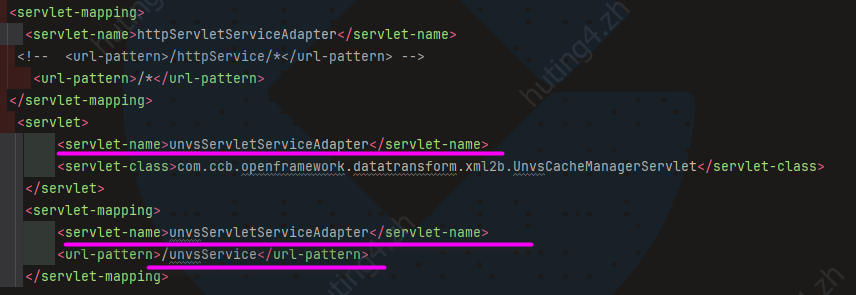
容器tomcat的根目录/nrmm
处理类

最后组装请求语句
curl http://10.239.160.61:8081/nrmm/unvsService?opt=clear